 |
Error list
for STKO v.3.1.0
|


|
|
Error list
for STKO v.3.1.0
|
|
The following is a list of element_properties errors that can occur while using STKO (Scientific Toolkit for OpenSees).
For each error, a brief description and a possible solution to resolve it is provided. In case the error is not in the list or if the proposed solution has no effect, please post in our forum.
| error code | command | error message | solution |
|---|---|---|---|
| ASDAbsorbingBoundary2D | no physical_property has been assigned | The ASDAbsorbingBoundary2D requires the physical_property ASDAbsorbingBoundary2DMaterial. | |

EP.0472 - ASDAbsorbingBoundary2DMaterial | |||
| ASDAbsorbingBoundary2D | physical_property not compatible with the element | The ASDAbsorbingBoundary2D requires the physical_property ASDAbsorbingBoundary2DMaterial. | |
EP.0494 - ASDAbsorbingBoundary2DMaterial | |||
| ASDAbsorbingBoundary2D | invalid type of element or number of nodes | The element type must be 'Quadrilateral' with 4 nodes. | |
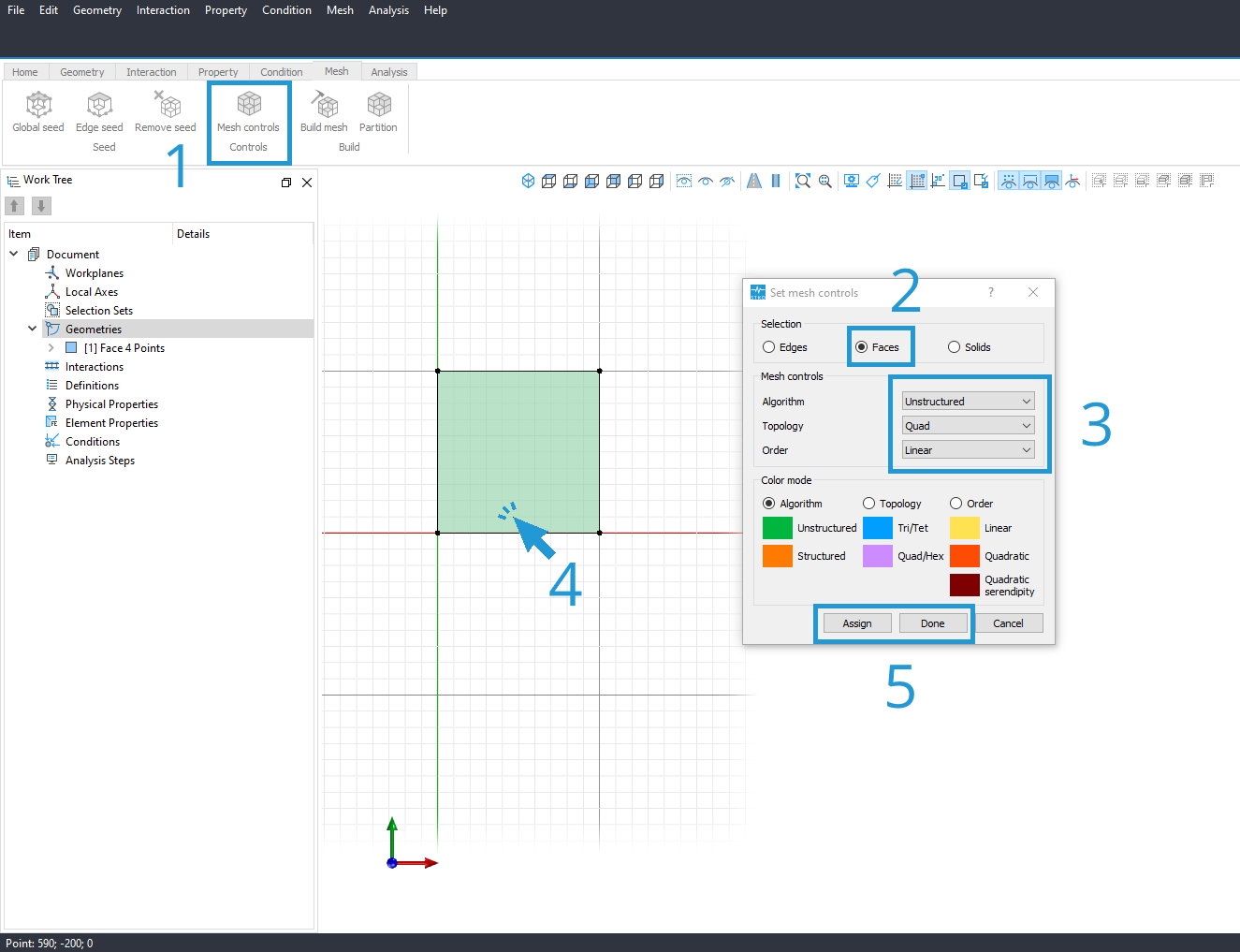
EP.0066 - Quadrilateral_4nodes | |||
| ASDAbsorbingBoundary2DAuto | invalid boudary type | The ASDAbsorbingBoundary2DAuto element requires only one of these boudary types: B, L or R. | |
| |||
| ASDAbsorbingBoundary2DAuto | no CAE document | Create at least one CAE document. | |
| |||
| ASDAbsorbingBoundary2DAuto | invalid type of element or number of nodes | The element type must be 'Line' with 2 nodes. | |
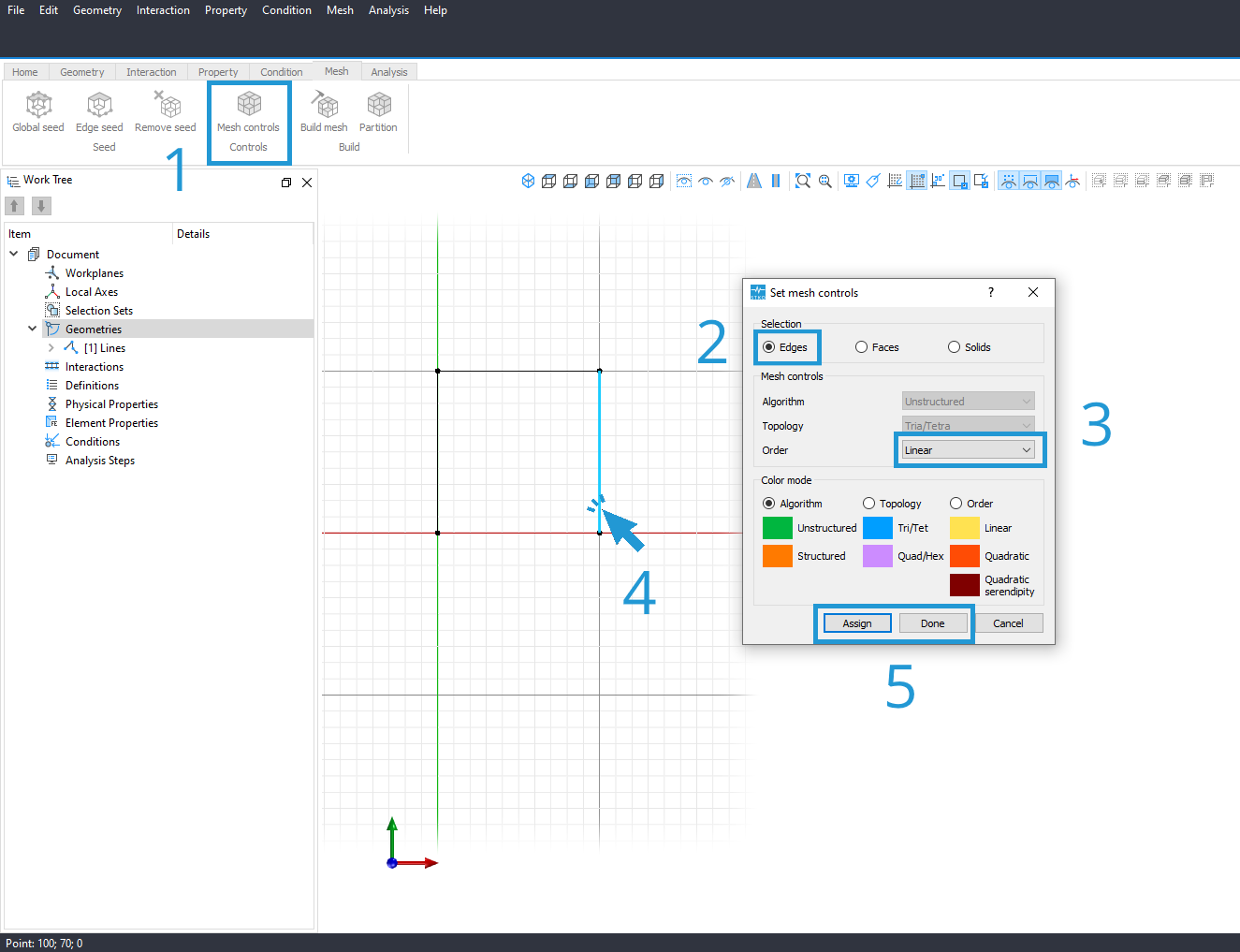
EP.0218 - Line_2nodes | |||
| ASDAbsorbingBoundary2DAuto | empty bounding box | The ASDAbsorbingBoundary2DAuto element requires a bounding box that is not empty. | |
| |||
| ASDAbsorbingBoundary2DAuto | invalid type of element or number of nodes | The element type must be 'Line' with 2 nodes. | |
EP.0028 - Line_2nodes | |||
| ASDAbsorbingBoundary2DAuto | no physical_property has been assigned | The ASDAbsorbingBoundary2DAuto requires the physical_property ASDAbsorbingBoundary2DMaterial. | |
EP.0335 - ASDAbsorbingBoundary2DMaterial | |||
| ASDAbsorbingBoundary2DAuto | physical_property not compatible with the element | The ASDAbsorbingBoundary2DAuto requires the physical_property ASDAbsorbingBoundary2DMaterial. | |
EP.0079 - ASDAbsorbingBoundary2DMaterial | |||
| ASDAbsorbingBoundary2DAuto | no CAE document | Create at least one CAE document. | |
| |||
| ASDAbsorbingBoundary3D | no physical_property has been assigned | The ASDAbsorbingBoundary3D requires the physical_property ASDAbsorbingBoundary3DMaterial. | |
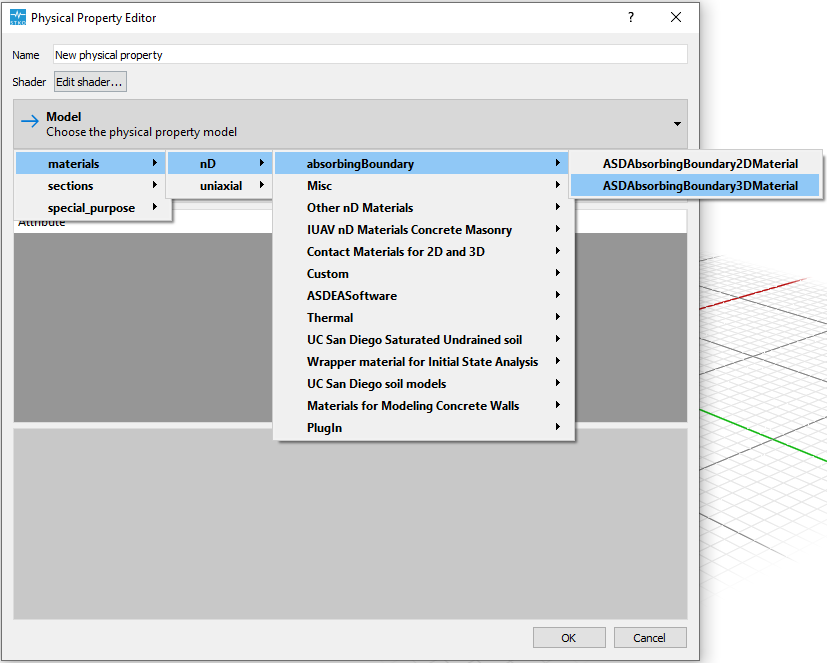
EP.0137 - ASDAbsorbingBoundary3DMaterial | |||
| ASDAbsorbingBoundary3D | physical_property not compatible with the element | The ASDAbsorbingBoundary3D requires the physical_property ASDAbsorbingBoundary3DMaterial. | |
EP.0634 - ASDAbsorbingBoundary3DMaterial | |||
| ASDAbsorbingBoundary3D | invalid type of element or number of nodes | The element type must be 'Hexahedron' with 8 nodes. | |
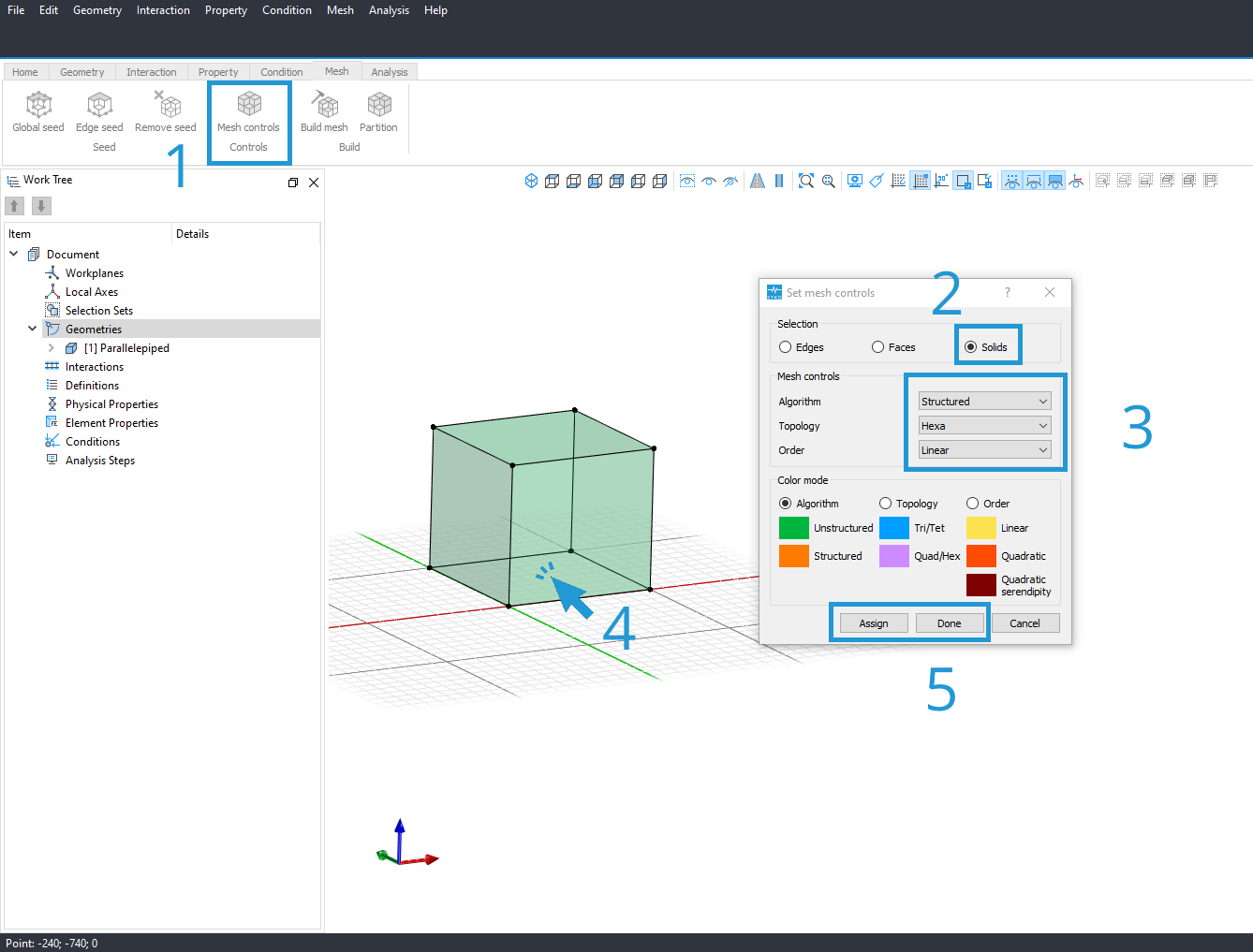
EP.0097 - Hexahedron_8nodes | |||
| ASDAbsorbingBoundary3DAuto | invalid boudary type | The ASDAbsorbingBoundary3DAuto element requires only one of these boudary types: B, L, R, F or K. | |
| |||
| ASDAbsorbingBoundary3DAuto | no CAE document | Create at least one CAE document. | |
| |||
| ASDAbsorbingBoundary3DAuto | invalid type of element or number of nodes | The element type must be 'Quadrilateral' with 4 nodes. | |
EP.0176 - Quadrilateral_4nodes | |||
| ASDAbsorbingBoundary3DAuto | empty bounding box | The ASDAbsorbingBoundary3DAuto element requires a bounding box that is not empty. | |
| |||
| ASDAbsorbingBoundary3DAuto | distorted element | The ASDAbsorbingBoundary3DAuto element presents an element with a singular jacobian. | |
| |||
| ASDAbsorbingBoundary3DAuto | invalid type of element or number of nodes | The element type must be 'Quadrilateral' with 4 nodes. | |
EP.0471 - Quadrilateral_4nodes | |||
| ASDAbsorbingBoundary3DAuto | no physical_property has been assigned | The ASDAbsorbingBoundary3DAuto requires the physical_property ASDAbsorbingBoundary3DMaterial. | |
EP.0703 - ASDAbsorbingBoundary3DMaterial | |||
| ASDAbsorbingBoundary3DAuto | physical_property not compatible with the element | The ASDAbsorbingBoundary3DAuto requires the physical_property ASDAbsorbingBoundary3DMaterial. | |
EP.0358 - ASDAbsorbingBoundary3DMaterial | |||
| ASDAbsorbingBoundary3DAuto | permutation error | Cannot find initial permutation. | |
| |||
| ASDAbsorbingBoundary3DAuto | permutation error | Cannot find initial permutation. | |
| |||
| ASDAbsorbingBoundary3DAuto | no CAE document | Create at least one CAE document. | |
| |||
| AxEqDispBeamColumn2d | physical_property not compatible with the element | The AxEqDispBeamColumn2d requires the physical_property BeamSectionProperty(old). | |
.png)
EP.0273 - BeamSectionProperty(old) | |||
| dispBeamColumnInt | physical_property not compatible with the element | The dispBeamColumnInt requires the physical_property sections. | |

EP.0284 - sections | |||
| dispBeamColumnInt | invalid type of element or number of nodes | The element type must be 'Line' with 2 nodes. | |
EP.0562 - Line_2nodes | |||
| dispBeamColumnThermal | physical_property not compatible with the element | The dispBeamColumnThermal requires the physical_property BeamSectionProperty(old). | |
EP.0004 - BeamSectionProperty(old) | |||
| dispBeamColumnWithSensitivity | physical_property not compatible with the element | The dispBeamColumnWithSensitivity requires the physical_property BeamSectionProperty(old). | |
EP.0288 - BeamSectionProperty(old) | |||
| elasticBeamColumn | physical_property not compatible with the element | The elasticBeamColumn requires the physical_property sections/Elastic. | |
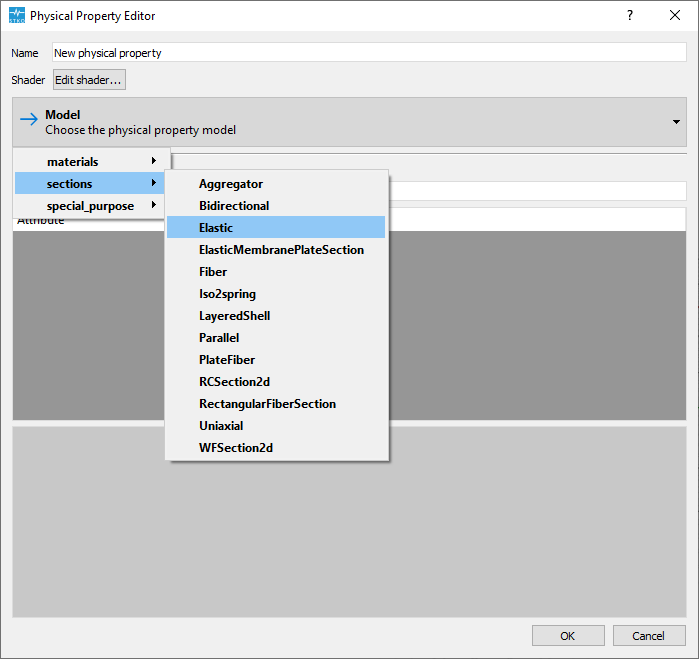
EP.0231 - sections_Elastic | |||
| elasticBeamColumn | physical_property not compatible with the element | The elasticBeamColumn requires the physical_property sections/Elastic. | |
EP.0186 - sections_Elastic | |||
| elasticBeamColumn | different dimension between element_property and physical_property | Different dimension between elasticBeamColumn and its physical_property. | |
| |||
| elasticBeamColumn | invalid type of element or number of nodes | The element type must be 'Line' with 2 nodes. | |
EP.0175 - Line_2nodes | |||
| elasticBeamColumn | no physical_property has been assigned | The elasticBeamColumn requires the physical_property sections. | |
EP.0508 - sections | |||
| ElasticTimoshenkoBeam | physical_property not compatible with the element | The ElasticTimoshenkoBeam requires the physical_property sections/Elastic. | |
EP.0473 - sections_Elastic | |||
| ElasticTimoshenkoBeam | physical_property not compatible with the element | The ElasticTimoshenkoBeam requires the physical_property sections/Elastic. | |
EP.0425 - sections_Elastic | |||
| ElasticTimoshenkoBeam | invalid type of element or number of nodes | The element type must be 'Line' with 2 nodes. | |
EP.0363 - Line_2nodes | |||
| ElasticTimoshenkoBeam | different dimension between element_property and physical_property | Different dimension between ElasticTimoshenkoBeam and its physical_property. | |
| |||
| ElasticTimoshenkoBeam | no physical_property has been assigned | The ElasticTimoshenkoBeam requires the physical_property sections/Elastic. | |
EP.0193 - sections_Elastic | |||
| element2dGNL | invalid type of element or number of nodes | The element2dGNL requires 2 nodes. | |
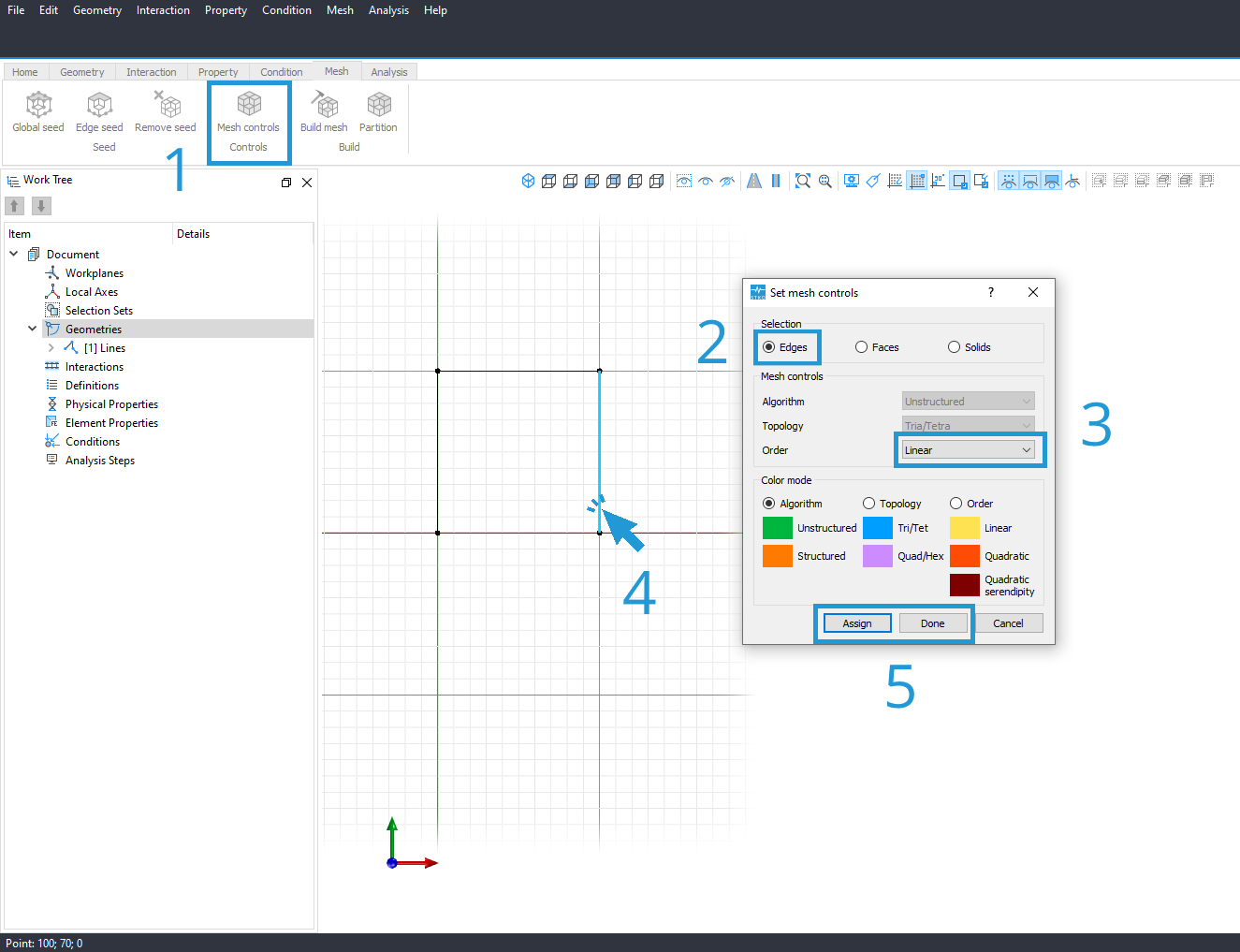
EP.0485 - Edge_2nodes OR
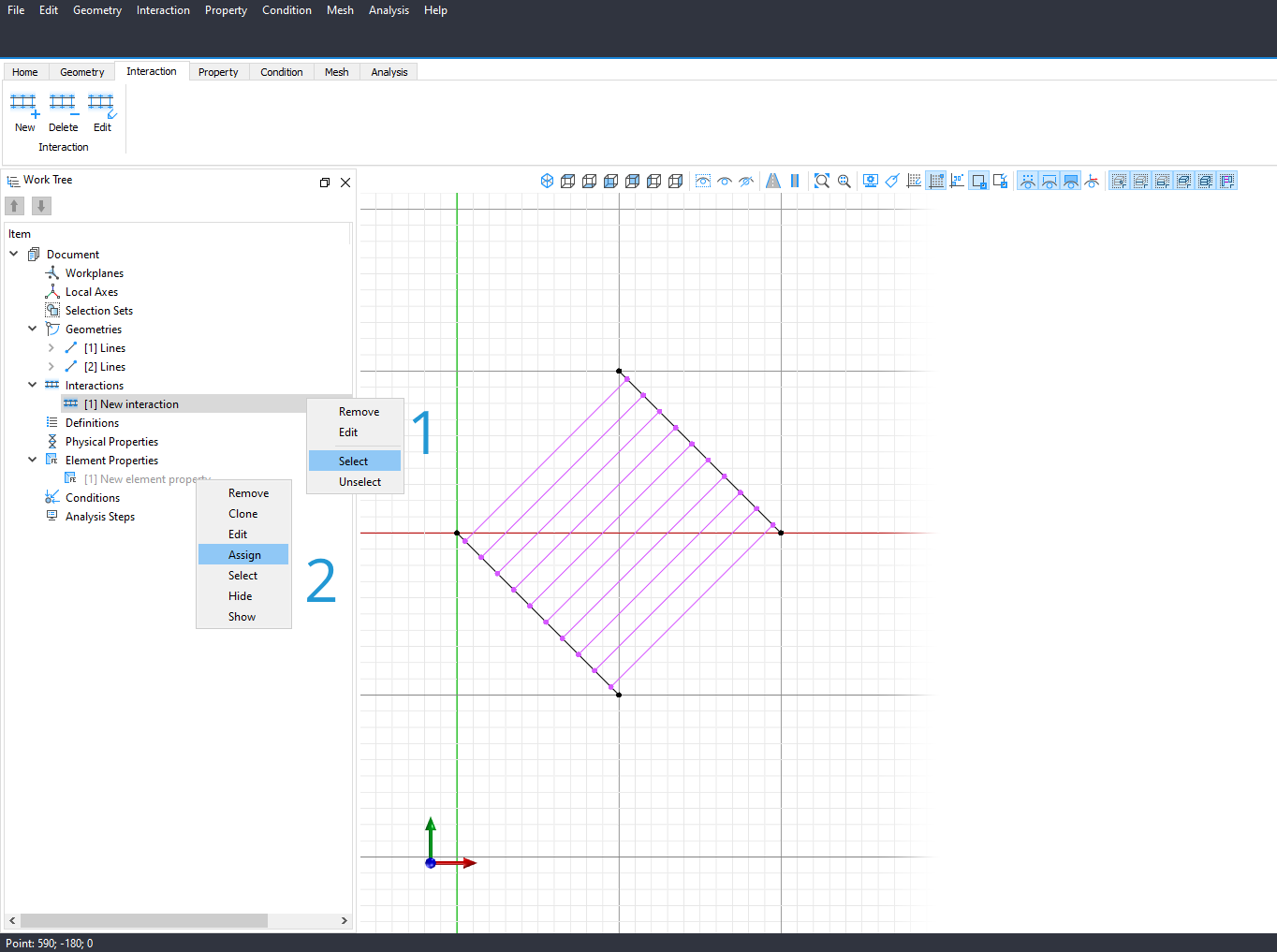
EP.0485 - Interaction | |||
| element2dGNL | different dimension between element_property and physical_property | The element2dGNL requires a physical_property having 2D dimension. | |
| |||
| element2dGNL | no physical_property has been assigned | The element2dGNL requires the physical_property sections. | |
EP.0678 - sections | |||
| internalBeamColumnElement | incorrect size between two or more variables | The internalBeamColumnElement requires that secTag, positions and numIntPts have the same size. | |
| |||
| internalBeamColumnElement | incorrect size between two or more variables | The internalBeamColumnElement requires that secTag, positionsI and weightsJ have the same size. | |
| |||
| internalBeamColumnElement | variable with incorrect value | The internalBeamColumnElement requires numIntPts to be greater than or equal to 1. | |
| |||
| internalBeamColumnElement | incorrect size between two or more variables | The internalBeamColumnElement requires that secTag, positions and numIntPts have the same size. | |
| |||
| internalBeamColumnElement | variable with incorrect value | The internalBeamColumnElement requires numIntPts to be greater than or equal to 1. | |
| |||
| internalBeamColumnElement | incorrect size between two or more variables | The internalBeamColumnElement requires that secTag, positions and numIntPts have the same size. | |
| |||
| internalBeamColumnElement | variable with incorrect value | The internalBeamColumnElement requires numIntPts to be greater than or equal to 1. | |
| |||
| internalBeamColumnElement | incorrect size between two or more variables | The internalBeamColumnElement requires that secTag, positions and numIntPts have the same size. | |
| |||
| internalBeamColumnElement | invalid type of element or number of nodes | The element type must be 'Line' with 2 nodes. | |
EP.0559 - Line_2nodes | |||
| MVLEM | physical_property not compatible with the element | The MVLEM requires the physical_property materials/uniaxial. | |
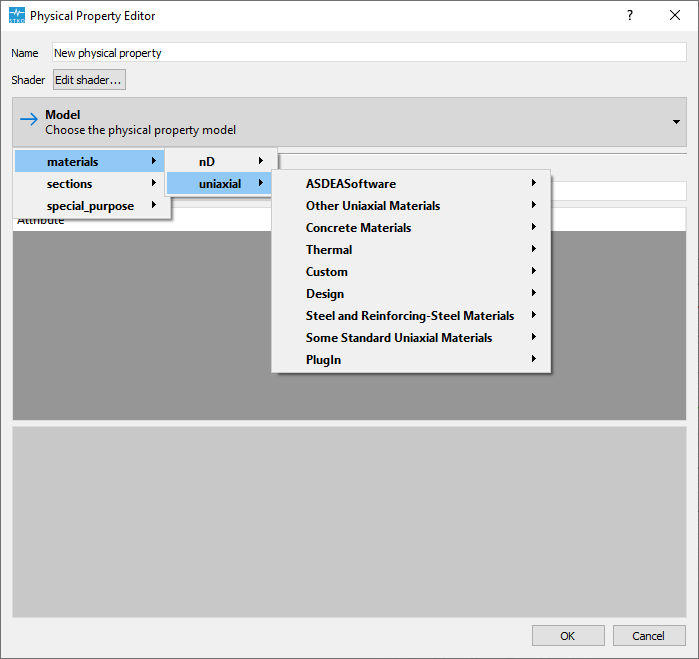
EP.0337 - materials_uniaxial | |||
| MVLEM | invalid type of element or number of nodes | The element type must be 'Line' with 2 nodes. | |
EP.0226 - Line_2nodes | |||
| MVLEM | incorrect size between two or more variables | The MVLEM requires that Thicknesses and Number of element macro-fibers have the same size. | |
| |||
| MVLEM | incorrect size between two or more variables | The MVLEM requires that Widths and Number of element macro-fibers have the same size. | |
| |||
| MVLEM | incorrect size between two or more variables | The MVLEM requires that Reinforcing_ratios and Number of element macro-fibers have the same size. | |
| |||
| MVLEM | incorrect size between two or more variables | The MVLEM requires that Concrete_tags and Number of element macro-fibers have the same size. | |
| |||
| MVLEM | incorrect size between two or more variables | The MVLEM requires that Steel_tags and Number of element macro-fibers have the same size. | |
| |||
| SFI_MVLEM | invalid type of element or number of nodes | The element type must be 'Line' with 2 nodes. | |
EP.0480 - Line_2nodes | |||
| SFI_MVLEM | incorrect size between two or more variables | The SFI_MVLEM requires that Thicknesses and Number of element macro-fibers have the same size. | |
| |||
| SFI_MVLEM | incorrect size between two or more variables | The SFI_MVLEM requires that Widths and Number of element macro-fibers have the same size. | |
| |||
| SFI_MVLEM | incorrect size between two or more variables | The SFI_MVLEM requires that Material_tags and Number of element macro-fibers have the same size. | |
| |||
| elastomericBearingBoucWen | invalid type of element or number of nodes | The elastomericBearingBoucWen requires 2 nodes. | |
EP.0555 - Edge_2nodes OR
EP.0555 - Interaction | |||
| elastomericBearingBoucWen | physical_property not compatible with the element | The elastomericBearingBoucWen requires the physical_property elastomericBearingMaterial. | |
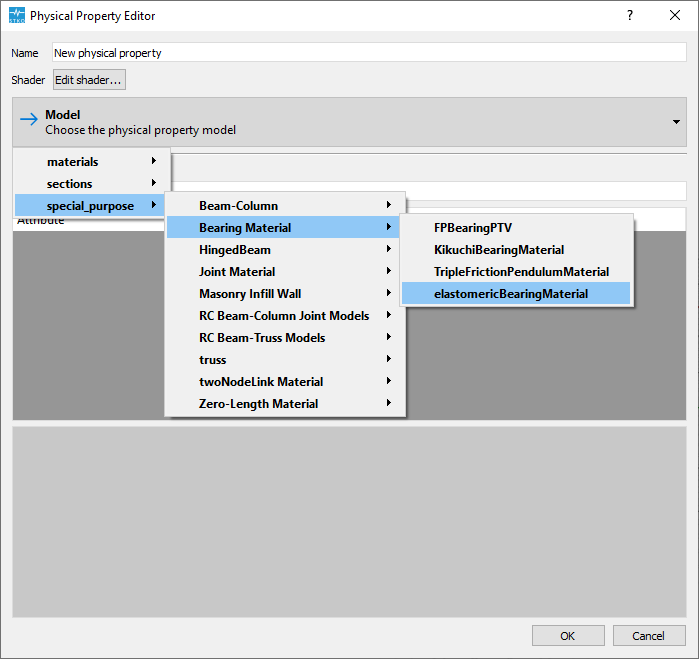
EP.0225 - elastomericBearingMaterial | |||
| elastomericBearingBoucWenMod | invalid type of element or number of nodes | The elastomericBearingBoucWenMod requires 2 nodes. | |
EP.0440 - Edge_2nodes OR
EP.0440 - Interaction | |||
| elastomericBearingPlasticity | invalid type of element or number of nodes | The elastomericBearingPlasticity requires 2 nodes. | |
EP.0461 - Edge_2nodes OR
EP.0461 - Interaction | |||
| elastomericBearingPlasticity | physical_property not compatible with the element | The elastomericBearingPlasticity requires the physical_property elastomericBearingMaterial. | |
EP.0497 - elastomericBearingMaterial | |||
| elastomericBearingPlasticity | different dimension between element_property and physical_property | Different dimension between elastomericBearingPlasticity and its physical_property. | |
| |||
| elastomericBearingUFRP | invalid type of element or number of nodes | The elastomericBearingUFRP requires 2 nodes. | |
EP.0523 - Edge_2nodes OR
EP.0523 - Interaction | |||
| elastomericBearingUFRP | physical_property not compatible with the element | The elastomericBearingUFRP requires the physical_property elastomericBearingMaterial. | |
EP.0309 - elastomericBearingMaterial | |||
| elastomericBearingUFRP | wrong spatial dimension | The elastomericBearingUFRP requires NDM to be equal to 2D. | |
| |||
| ElastomericX | invalid type of element or number of nodes | The ElastomericX requires 2 nodes. | |
EP.0072 - Edge_2nodes OR
EP.0072 - Interaction | |||
| flatSliderBearing | invalid type of element or number of nodes | The flatSliderBearing requires 2 nodes. | |
EP.0402 - Edge_2nodes OR
EP.0402 - Interaction | |||
| FPBearingPTV | invalid type of element or number of nodes | The FPBearingPTV requires 2 nodes. | |
EP.0611 - Edge_2nodes OR
EP.0611 - Interaction | |||
| FPBearingPTV | physical_property not compatible with the element | The FPBearingPTV requires the physical_property FPBearingPTVMaterial. | |
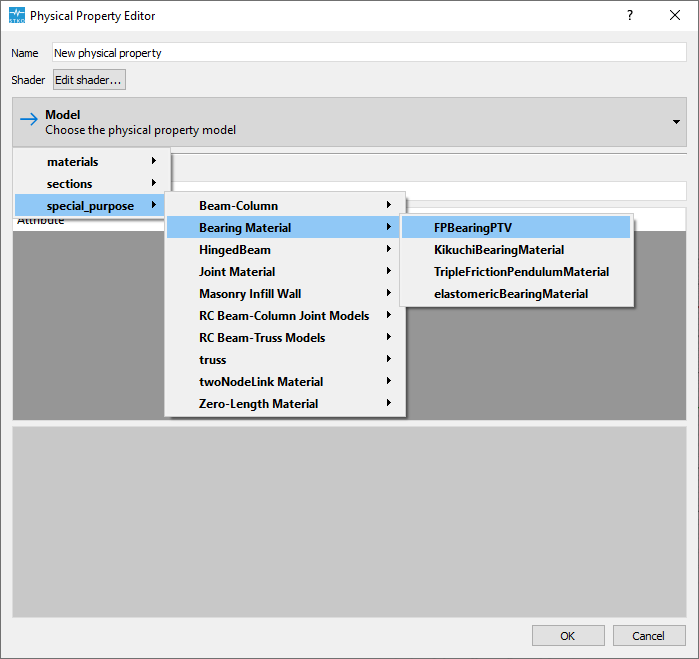
EP.0410 - FPBearingPTVMaterial | |||
| HDR | invalid type of element or number of nodes | The HDR requires 2 nodes. | |
EP.0277 - Edge_2nodes OR
EP.0277 - Interaction | |||
| KikuchiBearing | physical_property not compatible with the element | The KikuchiBearing requires the physical_property KikuchiBearingMaterial. | |
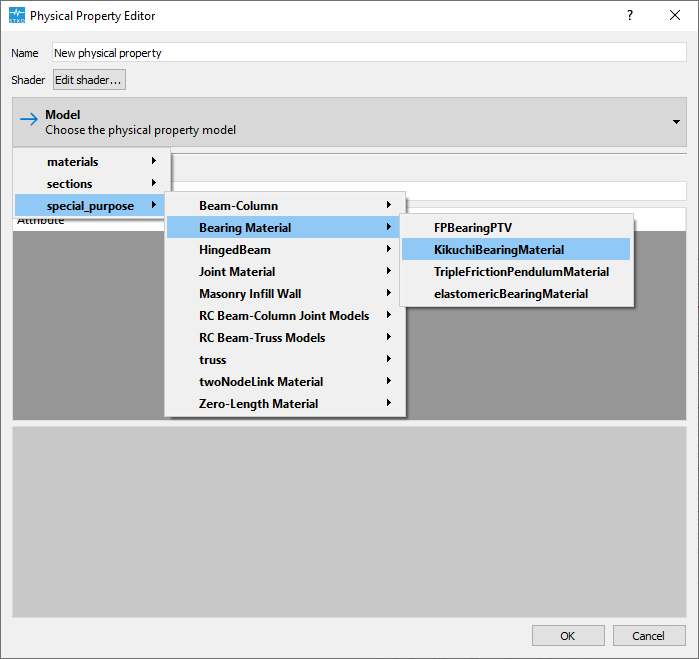
EP.0482 - KikuchiBearingMaterial | |||
| KikuchiBearing | invalid type of element or number of nodes | The KikuchiBearing requires 2 nodes. | |
EP.0470 - Edge_2nodes OR
EP.0470 - Interaction | |||
| LeadRubberX | invalid type of element or number of nodes | The LeadRubberX requires 2 nodes. | |
EP.0080 - Edge_2nodes OR
EP.0080 - Interaction | |||
| multipleNormalSpring | invalid type of element or number of nodes | The multipleNormalSpring requires 2 nodes. | |
EP.0170 - Edge_2nodes OR
EP.0170 - Interaction | |||
| multipleShearSpring | physical_property not compatible with the element | The multipleShearSpring requires the physical_property materials/uniaxial. | |
EP.0674 - materials_uniaxial | |||
| multipleShearSpring | invalid type of element or number of nodes | The multipleShearSpring requires 2 nodes. | |
EP.0346 - Edge_2nodes OR
EP.0346 - Interaction | |||
| singleFPBearing | no CAE document | Create at least one CAE document. | |
| |||
| singleFPBearing | invalid type of element or number of nodes | The singleFPBearing requires 2 nodes. | |
EP.0073 - Edge_2nodes OR
EP.0073 - Interaction | |||
| TFPbearing | invalid type of element or number of nodes | The TFPbearing requires 2 nodes. | |
EP.0582 - Edge_2nodes OR
EP.0582 - Interaction | |||
| TripleFrictionPendulum | invalid type of element or number of nodes | The TripleFrictionPendulum requires 2 nodes. | |
EP.0031 - Edge_2nodes OR
EP.0031 - Interaction | |||
| TripleFrictionPendulum | physical_property not compatible with the element | The TripleFrictionPendulum requires the physical_property TripleFrictionPendulumMaterial. | |
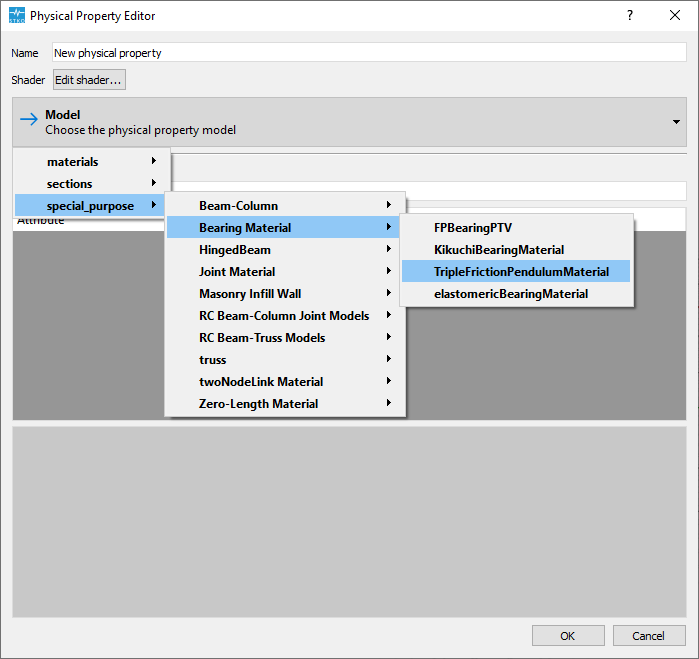
EP.0669 - TripleFrictionPendulumMaterial | |||
| YamamotoBiaxialHDR | invalid type of element or number of nodes | The YamamotoBiaxialHDR requires 2 nodes. | |
EP.0645 - Edge_2nodes OR
EP.0645 - Interaction | |||
| 20NodeBrick | physical_property not compatible with the element | The 20NodeBrick requires the physical_property materials/nD. | |
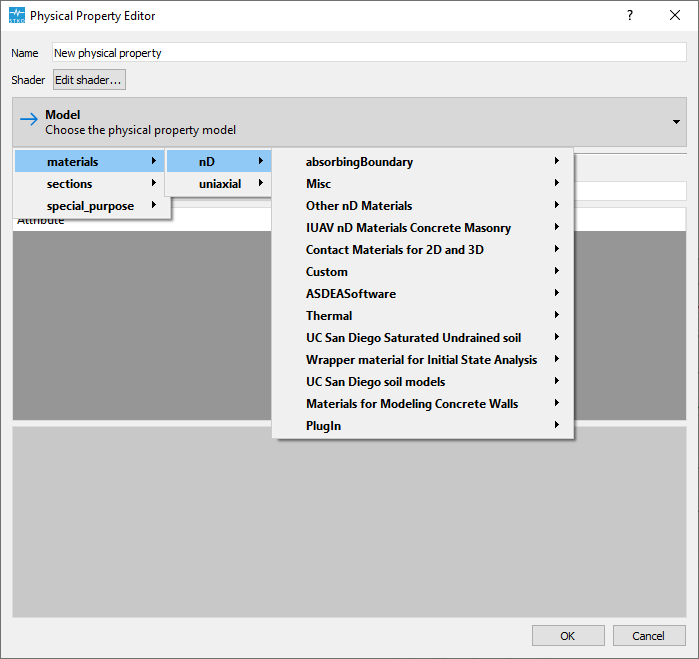
EP.0017 - materials_nD | |||
| 20NodeBrick | invalid type of element or number of nodes | The element type must be 'Hexahedron' with 20 nodes. | |
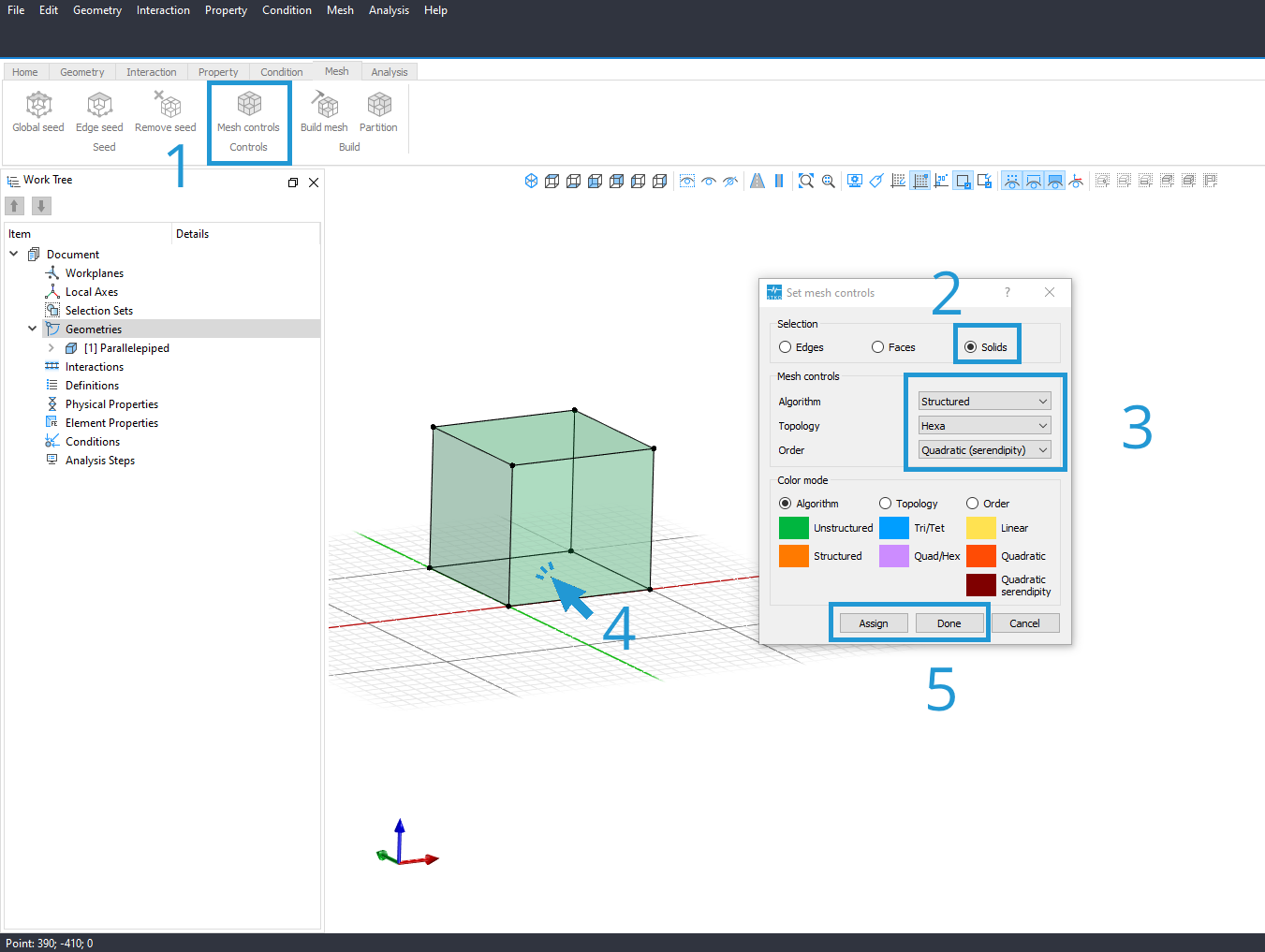
EP.0292 - Hexahedron_20nodes | |||
| bbarBrick | physical_property not compatible with the element | The bbarBrick requires the physical_property materials/nD. | |
EP.0581 - materials_nD | |||
| bbarBrick | invalid type of element or number of nodes | The element type must be 'Hexahedron' with 8 nodes. | |
EP.0411 - Hexahedron_8nodes | |||
| bbarBrickWithSensitivity | physical_property not compatible with the element | The bbarBrickWithSensitivity requires the physical_property materials/nD. | |
EP.0166 - materials_nD | |||
| bbarBrickWithSensitivity | invalid type of element or number of nodes | The element type must be 'Hexahedron' with 8 nodes. | |
EP.0158 - Hexahedron_8nodes | |||
| SSPbrick | invalid type of element or number of nodes | The element type must be 'Hexahedron' with 8 nodes. | |
EP.0403 - Hexahedron_8nodes | |||
| stdBrick | physical_property not compatible with the element | The stdBrick requires the physical_property materials/nD. | |
EP.0501 - materials_nD | |||
| stdBrick | invalid type of element or number of nodes | The element type must be 'Hexahedron' with 8 nodes. | |
EP.0212 - Hexahedron_8nodes | |||
| CatenaryCable | invalid type of element or number of nodes | The element type must be 'Line' with 2 nodes. | |
EP.0663 - Line_2nodes | |||
| BeamContact2D | physical_property not compatible with the element | The BeamContact2D requires the physical_property ContactMaterial2D. | |
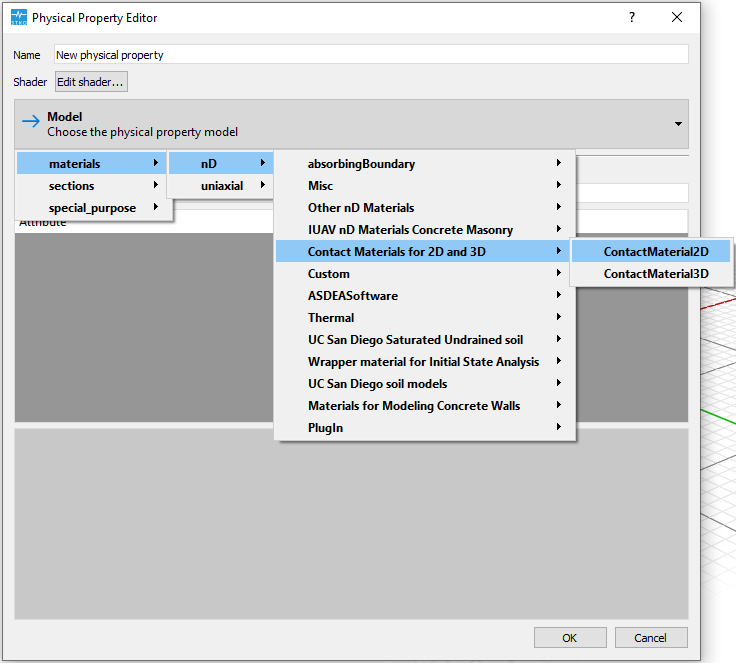
EP.0627 - ContactMaterial2D | |||
| BeamContact2D | physical_property not compatible with the element | The BeamContact2D requires the physical_property ContactMaterial2D. | |
EP.0384 - ContactMaterial2D | |||
| BeamContact2D | incompatible number of master/slave node | The BeamContact2D requires 2 master node/s. | |
| |||
| BeamContact2D | incompatible number of master/slave node | The BeamContact2D requires 1 slave node/s. | |
| |||
| BeamContact2dp | physical_property not compatible with the element | The BeamContact2dp requires the physical_property ContactMaterial2D. | |
EP.0603 - ContactMaterial2D | |||
| BeamContact2dp | physical_property not compatible with the element | The BeamContact2dp requires the physical_property ContactMaterial2D. | |
EP.0458 - ContactMaterial2D | |||
| BeamContact3D | physical_property not compatible with the element | The BeamContact3D requires the physical_property ContactMaterial3D. | |

EP.0602 - ContactMaterial3D | |||
| BeamContact3D | incompatible number of master/slave node | The BeamContact3D requires 2 master node/s. | |
| |||
| BeamContact3D | incompatible number of master/slave node | The BeamContact3D requires 1 slave node/s. | |
| |||
| BeamContact3dp | physical_property not compatible with the element | The BeamContact3dp requires the physical_property ContactMaterial3D. | |
EP.0368 - ContactMaterial3D | |||
| BeamContact3dp | incompatible number of master/slave node | The BeamContact3dp requires 2 master node/s. | |
| |||
| BeamContact3dp | incompatible number of master/slave node | The BeamContact3dp requires 1 slave node/s. | |
| |||
| BeamEndContact3D | incompatible number of master/slave node | The BeamEndContact3D requires 2 master node/s. | |
| |||
| BeamEndContact3D | incompatible number of master/slave node | The BeamEndContact3D requires 1 slave node/s. | |
| |||
| BeamEndContact3dp | incompatible number of master/slave node | The BeamEndContact3dp requires 2 master node/s. | |
| |||
| BeamEndContact3dp | incompatible number of master/slave node | The BeamEndContact3dp requires 1 slave node/s. | |
| |||
| SimpleContact2D | physical_property not compatible with the element | The SimpleContact2D requires the physical_property ContactMaterial2D. | |
EP.0057 - ContactMaterial2D | |||
| SimpleContact2D | physical_property not compatible with the element | The SimpleContact2D requires the physical_property ContactMaterial2D. | |
EP.0191 - ContactMaterial2D | |||
| SimpleContact3D | physical_property not compatible with the element | The SimpleContact3D requires the physical_property ContactMaterial3D. | |
EP.0244 - ContactMaterial3D | |||
| SimpleContact3D | physical_property not compatible with the element | The SimpleContact3D requires the physical_property ContactMaterial3D. | |
EP.0204 - ContactMaterial3D | |||
| beamColumnJoint | invalid type of element or number of nodes | The element type must be 'Quadrilateral' with 4 nodes. | |
EP.0660 - Quadrilateral_4nodes | |||
| beamColumnJoint | physical_property not compatible with the element | The beamColumnJoint requires the physical_property beamColumnJointMaterial. | |

EP.0136 - beamColumnJointMaterial | |||
| Joint2D | invalid type of element or number of nodes | The Joint2D requires 4 nodes. | |
EP.0051 - Quadrilateral_4nodes | |||
| Joint2D | physical_property not compatible with the element | The Joint2D requires the physical_property Joint2DMaterial. | |
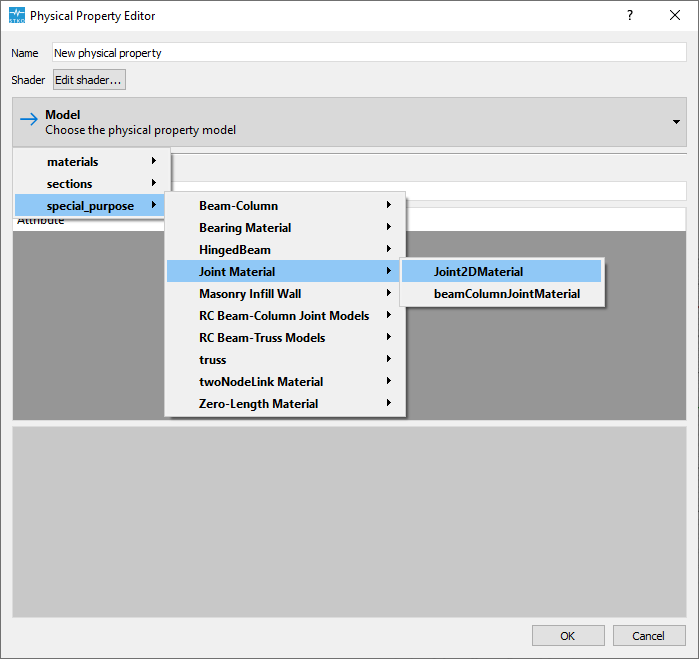
EP.0475 - Joint2DMaterial | |||
| twoNodeLink | invalid type of element or number of nodes | The element type must be 'Interaction'. | |
EP.0544 - Interaction | |||
| twoNodeLink | physical_property not compatible with the element | The twoNodeLink requires the physical_property twoNodeLinkMaterial. | |
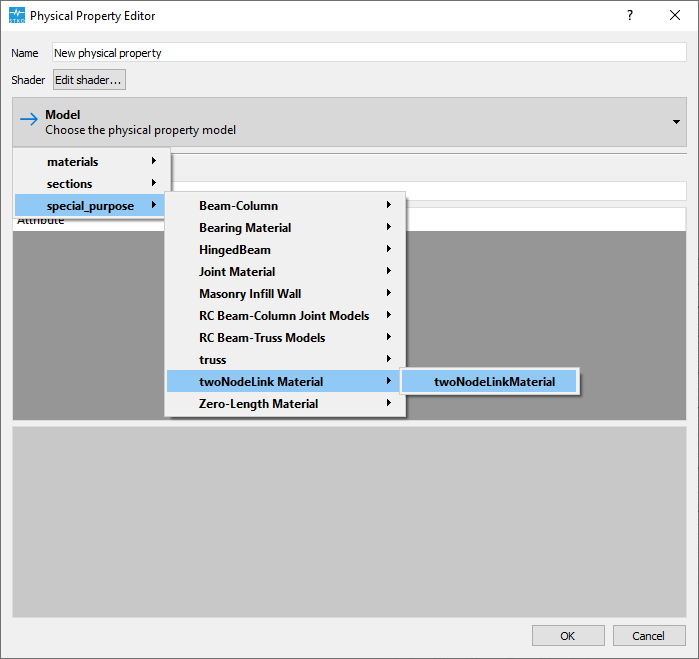
EP.0617 - twoNodeLinkMaterial | |||
| twoNodeLink | different dimension between element_property and physical_property | Different dimension between twoNodeLink and its physical_property. | |
| |||
| twoNodeLink | invalid type of element or number of nodes | The twoNodeLink requires 2 nodes. | |
EP.0088 - Edge_2nodes OR
EP.0088 - Interaction | |||
| VS3D4 | invalid type of element or number of nodes | The element type must be 'Quadrilateral' with 4 nodes. | |
EP.0197 - Quadrilateral_4nodes | |||
| bbarQuad | invalid type of element or number of nodes | The element type must be 'Quadrilateral' with 4 nodes. | |
EP.0566 - Quadrilateral_4nodes | |||
| bbarQuad | no physical_property has been assigned | The bbarQuad requires the physical_property materials/nD. | |
EP.0527 - materials_nD | |||
| enhancedQuad | invalid type of element or number of nodes | The element type must be 'Quadrilateral' with 4 nodes. | |
EP.0659 - Quadrilateral_4nodes | |||
| enhancedQuad | no physical_property has been assigned | The enhancedQuad requires the physical_property materials/nD. | |
EP.0439 - materials_nD | |||
| nineNodeQuad | invalid type of element or number of nodes | The element type must be 'Quadrilateral' with 9 nodes. | |
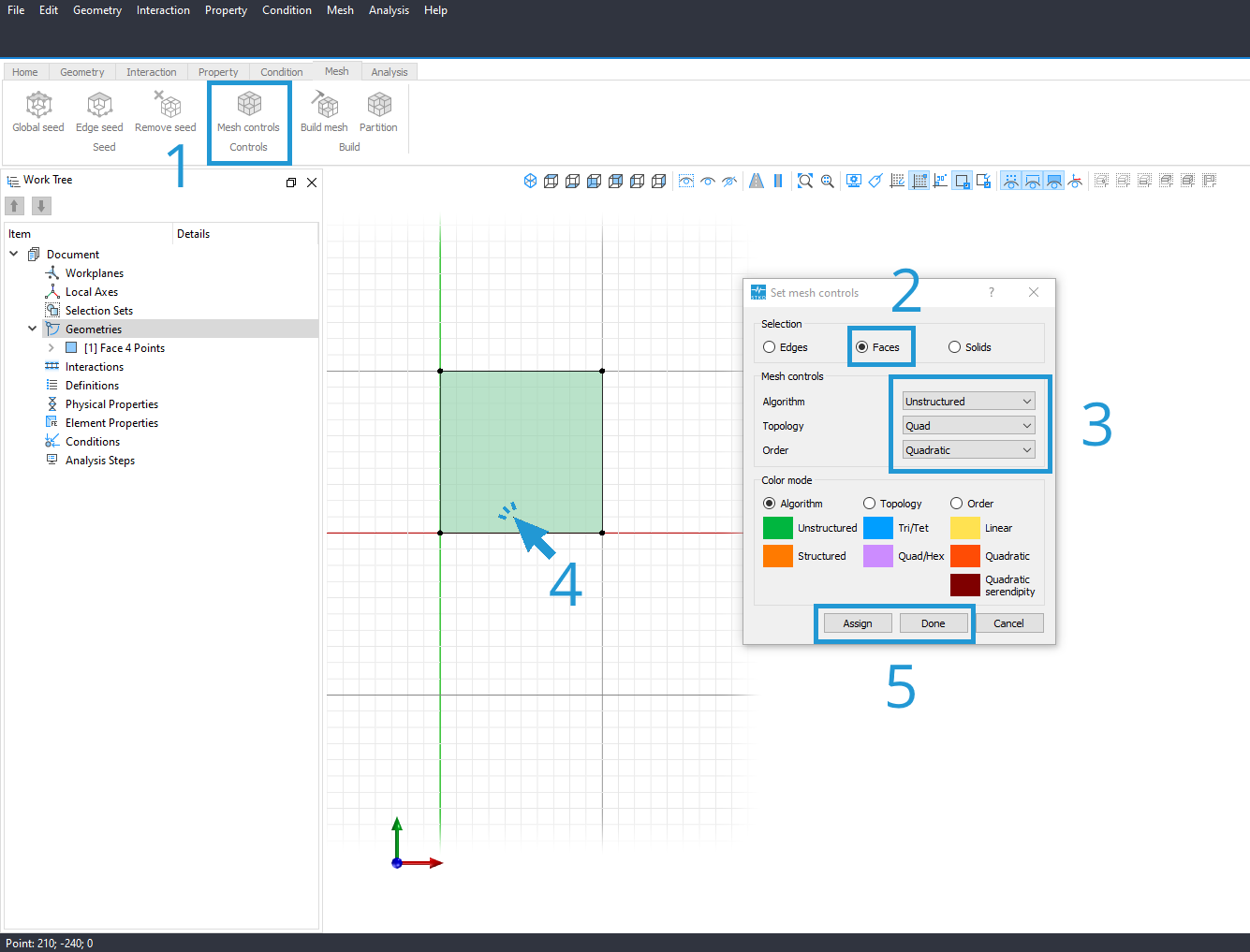
EP.0643 - Quadrilateral_9nodes | |||
| nineNodeQuad | no physical_property has been assigned | The nineNodeQuad requires the physical_property materials/nD. | |
EP.0014 - materials_nD | |||
| quad | invalid type of element or number of nodes | The element type must be 'Quadrilateral' with 4 nodes. | |
EP.0423 - Quadrilateral_4nodes | |||
| quad3d | invalid type of element or number of nodes | The element type must be 'Quadrilateral' with 4 nodes. | |
EP.0593 - Quadrilateral_4nodes | |||
| quadWithSensitivity | invalid type of element or number of nodes | The element type must be 'Quadrilateral' with 4 nodes. | |
EP.0695 - Quadrilateral_4nodes | |||
| SSPquad | physical_property not compatible with the element | The SSPquad requires the physical_property materials/nD. | |
EP.0419 - materials_nD | |||
| SSPquad | invalid type of element or number of nodes | The element type must be 'Quadrilateral' with 4 nodes. | |
EP.0091 - Quadrilateral_4nodes | |||
| RCJointModel3DElement | element is null | The RCJointModel3DElement presents a Null element. | |
| |||
| RCJointModel3DElement | incorrect size of variables | The RCJointModel3DElement requires that elem.nodes and node_id_vec have the same length. | |
| |||
| RCJointModel3DElement | invalid type of element or number of nodes | The RCJointModel3DElement requires 2 nodes. | |
EP.0714 - Edge_2nodes OR
EP.0714 - Interaction | |||
| RCJointModel3DElement | incorrect size of variables | The RCJointModel3DElement requires that nodes.id and node_id_vec have the same value. | |
| |||
| RCJointModel3DElement | no CAE document | Create at least one CAE document. | |
| |||
| N4BiaxialTruss | no physical_property has been assigned | The N4BiaxialTruss requires the physical_property materials/uniaxial. | |
EP.0710 - materials_uniaxial | |||
| N4BiaxialTruss | no physical_property has been assigned | The N4BiaxialTruss requires the physical_property materials/uniaxial. | |
EP.0530 - materials_uniaxial | |||
| N4BiaxialTruss | no CAE document | Create at least one CAE document. | |
| |||
| N4BiaxialTruss | invalid type of element or number of nodes | The element type must be 'Quadrilateral' with 4 nodes. | |
EP.0715 - Quadrilateral_4nodes | |||
| N4BiaxialTruss | physical_property not compatible with the element | The N4BiaxialTruss requires the physical_property RCTrussModel2D. | |
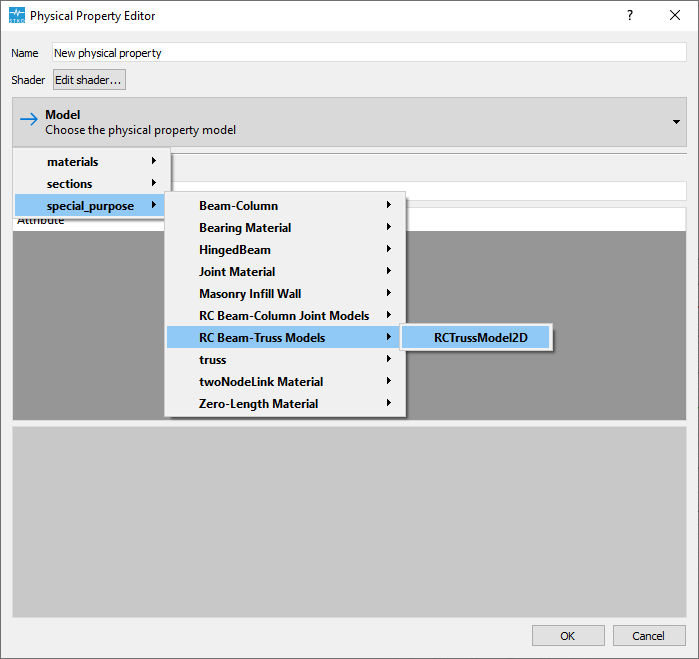
EP.0087 - RCTrussModel2D | |||
| N4BiaxialTruss | physical_property not compatible with the element | The N4BiaxialTruss requires the physical_property RCTrussModel2D. | |
EP.0330 - RCTrussModel2D | |||
| N4BiaxialTruss | distorted element | The N4BiaxialTruss element presents a distorted quadrilateral base mesh for RCTrussModel2DElement. | |
| |||
| RCTrussModel2DElement | no physical_property has been assigned | The RCTrussModel2DElement requires the physical_property materials/uniaxial. | |
EP.0233 - materials_uniaxial | |||
| RCTrussModel2DElement | no physical_property has been assigned | The RCTrussModel2DElement requires the physical_property materials/uniaxial. | |
EP.0055 - materials_uniaxial | |||
| RCTrussModel2DElement | no CAE document | Create at least one CAE document. | |
| |||
| RCTrussModel2DElement | invalid type of element or number of nodes | The element type must be 'Quadrilateral' with 4 nodes. | |
EP.0211 - Quadrilateral_4nodes | |||
| RCTrussModel2DElement | physical_property not compatible with the element | The RCTrussModel2DElement requires the physical_property RCTrussModel2D. | |
EP.0133 - RCTrussModel2D | |||
| RCTrussModel2DElement | physical_property not compatible with the element | The RCTrussModel2DElement requires the physical_property RCTrussModel2D. | |
EP.0150 - RCTrussModel2D | |||
| RCTrussModel2DElement | distorted element | The RCTrussModel2DElement element presents a distorted quadrilateral base mesh for RCTrussModel2DElement. | |
| |||
| ASDShellQ4 | physical_property not compatible with the element | The ASDShellQ4 requires the physical_property sections. | |
EP.0019 - sections | |||
| ASDShellQ4 | invalid type of element or number of nodes | The element type must be 'Quadrilateral' with 4 nodes. | |
EP.0687 - Quadrilateral_4nodes | |||
| ShellANDeS | invalid type of element or number of nodes | The element type must be 'Triangle' with 3 nodes. | |
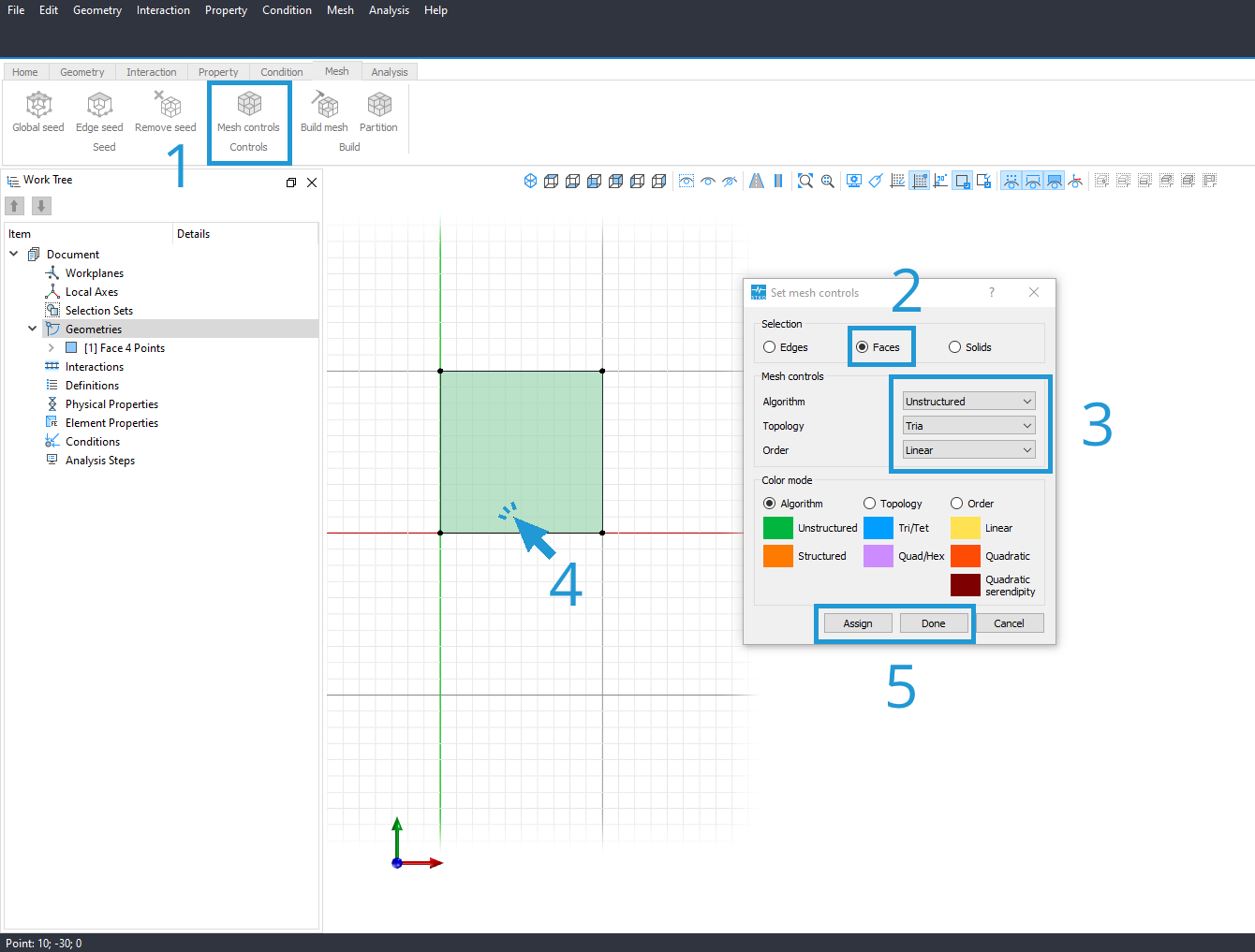
EP.0380 - Triangle_3nodes | |||
| ShellDKGQ | physical_property not compatible with the element | The ShellDKGQ requires the physical_property sections. | |
EP.0295 - sections | |||
| ShellDKGQ | invalid type of element or number of nodes | The element type must be 'Quadrilateral' with 4 nodes. | |
EP.0177 - Quadrilateral_4nodes | |||
| ShellDKGT | physical_property not compatible with the element | The ShellDKGT requires the physical_property sections. | |
EP.0261 - sections | |||
| ShellDKGT | invalid type of element or number of nodes | The element type must be 'Triangle' with 3 nodes. | |
EP.0285 - Triangle_3nodes | |||
| ShellMITC4 | physical_property not compatible with the element | The ShellMITC4 requires the physical_property sections. | |
EP.0015 - sections | |||
| ShellMITC4 | invalid type of element or number of nodes | The element type must be 'Quadrilateral' with 4 nodes. | |
EP.0224 - Quadrilateral_4nodes | |||
| shellMITC4Thermal | physical_property not compatible with the element | The shellMITC4Thermal requires the physical_property sections. | |
EP.0180 - sections | |||
| shellMITC4Thermal | invalid type of element or number of nodes | The element type must be 'Quadrilateral' with 4 nodes. | |
EP.0255 - Quadrilateral_4nodes | |||
| ShellMITC9 | physical_property not compatible with the element | The ShellMITC9 requires the physical_property sections. | |
EP.0345 - sections | |||
| ShellMITC9 | invalid type of element or number of nodes | The element type must be 'Quadrilateral' with 9 nodes. | |
EP.0122 - Quadrilateral_9nodes | |||
| ShellNLDKGQ | physical_property not compatible with the element | The ShellNLDKGQ requires the physical_property sections. | |
EP.0599 - sections | |||
| ShellNLDKGQ | invalid type of element or number of nodes | The element type must be 'Quadrilateral' with 4 nodes. | |
EP.0252 - Quadrilateral_4nodes | |||
| shellNLDKGQThermal | physical_property not compatible with the element | The shellNLDKGQThermal requires the physical_property sections. | |
EP.0666 - sections | |||
| shellNLDKGQThermal | invalid type of element or number of nodes | The element type must be 'Quadrilateral' with 4 nodes. | |
EP.0481 - Quadrilateral_4nodes | |||
| ShellNLDKGT | physical_property not compatible with the element | The ShellNLDKGT requires the physical_property sections. | |
EP.0202 - sections | |||
| ShellNLDKGT | invalid type of element or number of nodes | The element type must be 'Triangle' with 3 nodes. | |
EP.0074 - Triangle_3nodes | |||
| BeamWithShearHinge | no CAE document | Create at least one CAE document. | |
| |||
| BeamWithShearHinge | physical_property not compatible with the element | The BeamWithShearHinge requires the physical_property BeamWithShearHingeProperty. | |
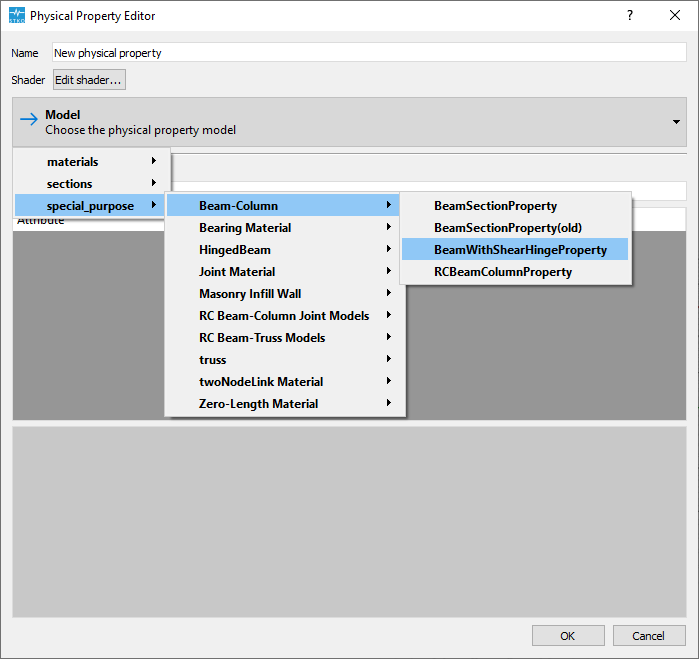
EP.0124 - BeamWithShearHingeProperty | |||
| BeamWithShearHinge | invalid type of element or number of nodes | The BeamWithShearHinge requires an element property with 2 nodes. | |
| |||
| BeamWithShearHinge | wrong spatial dimension | The BeamWithShearHinge requires an element property with 3 NDM and 6 NDF. | |
| |||
| BeamWithShearHinge | no CAE document | Create at least one CAE document. | |
| |||
| BeamWithShearHinge | invalid type of element or number of nodes | The element type must be 'Edge' with 2 nodes. | |
EP.0528 - Edge_2nodes | |||
| BeamWithShearHinge | invalid type of element or number of nodes | The element type must be 'Edge' with 2 nodes. | |
EP.0114 - Edge_2nodes | |||
| BeamWithShearHinge | physical_property not compatible with the element | The BeamWithShearHinge requires the physical_property BeamWithShearHingeProperty. | |
EP.0010 - BeamWithShearHingeProperty | |||
| BeamWithShearHinge | element_property not compatible | The BeamWithShearHinge requires the element_property BeamWithShearHinge. | |
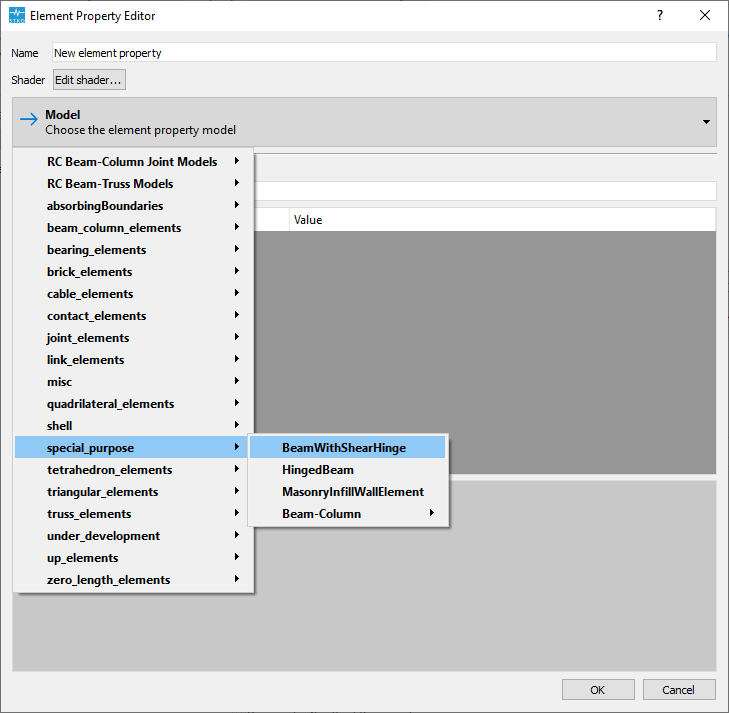
EP.0642 - BeamWithShearHinge | |||
| BeamWithShearHinge | physical_property not compatible with the element | The BeamWithShearHinge requires the physical_property BeamWithShearHingeProperty. | |
EP.0230 - BeamWithShearHingeProperty | |||
| BeamWithShearHinge | incorrect size of variables | The BeamWithShearHinge requires that nodal mass should have 6 components. | |
| |||
| HingedBeam | no CAE document | Create at least one CAE document. | |
| |||
| HingedBeam | physical_property not compatible with the element | The HingedBeam requires the physical_property HingedBeamPP. | |
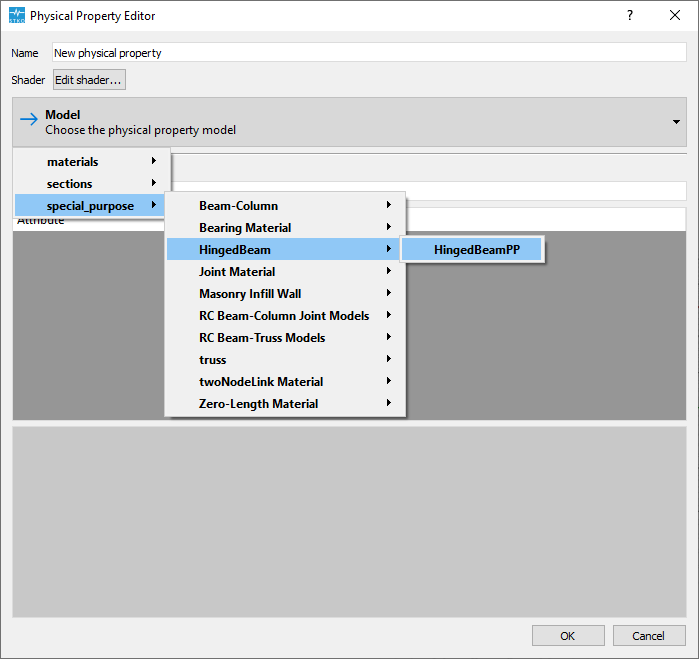
EP.0258 - HingedBeamPP | |||
| HingedBeam | no physical_property has been assigned | The HingedBeam requires the physical_property materials/uniaxial. | |
EP.0099 - materials_uniaxial | |||
| HingedBeam | no physical_property has been assigned | The HingedBeam requires the physical_property materials/uniaxial. | |
EP.0401 - materials_uniaxial | |||
| HingedBeam | different dimension between element_property and physical_property | Different dimension between HingedBeam and its physical_property. | |
| |||
| HingedBeam | no CAE document | Create at least one CAE document. | |
| |||
| HingedBeam | invalid type of element or number of nodes | The element type must be 'Edge' with 2or3 nodes. | |
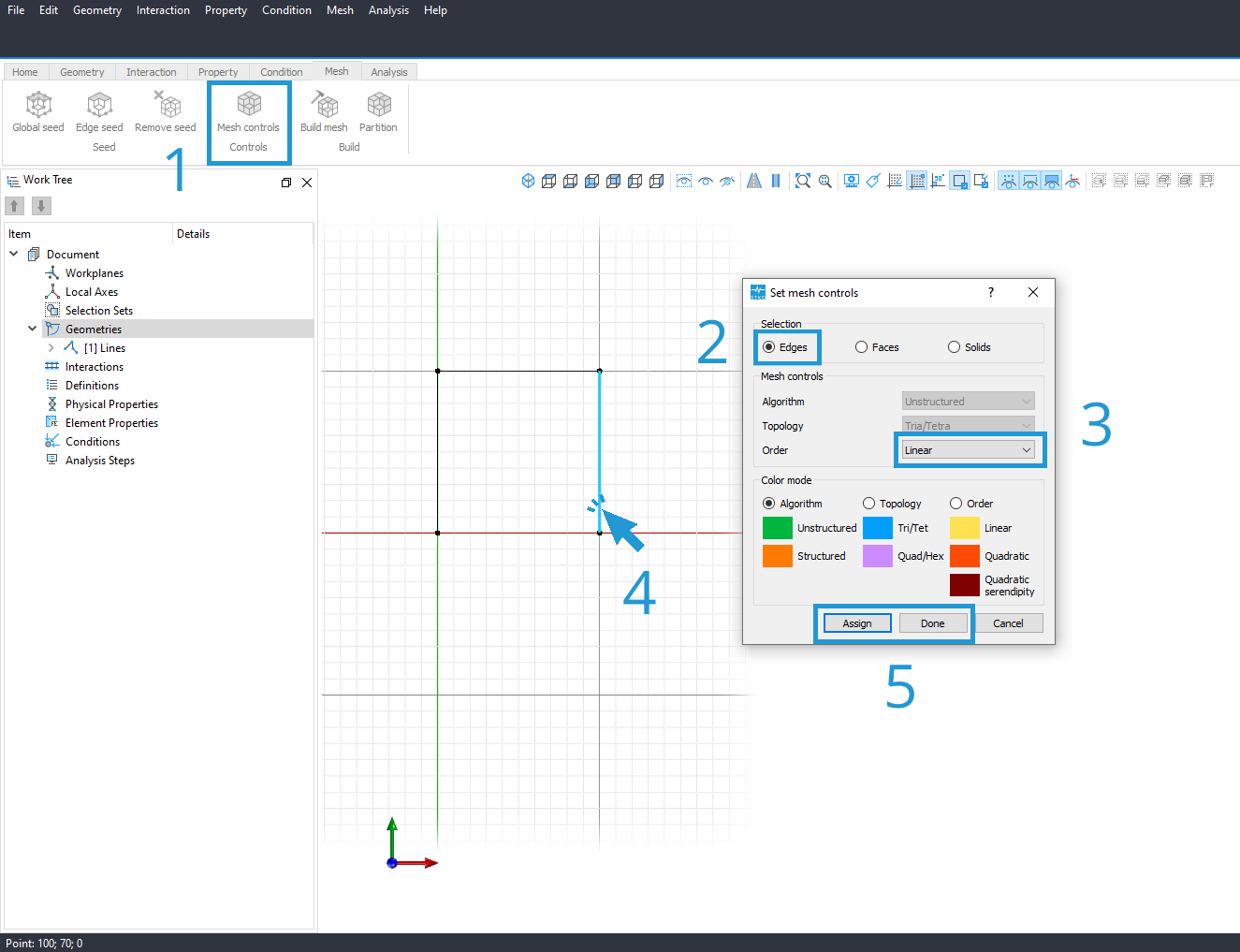
EP.0100 - Edge_2or3nodes | |||
| HingedBeam | invalid type of element or number of nodes | The element type must be 'Edge' with 2or3 nodes. | |
EP.0347 - Edge_2or3nodes | |||
| HingedBeam | physical_property not compatible with the element | The HingedBeam requires the physical_property HingedBeamPP. | |
EP.0104 - HingedBeamPP | |||
| HingedBeam | element_property not compatible | The HingedBeam requires the element_property HingedBeam. | |
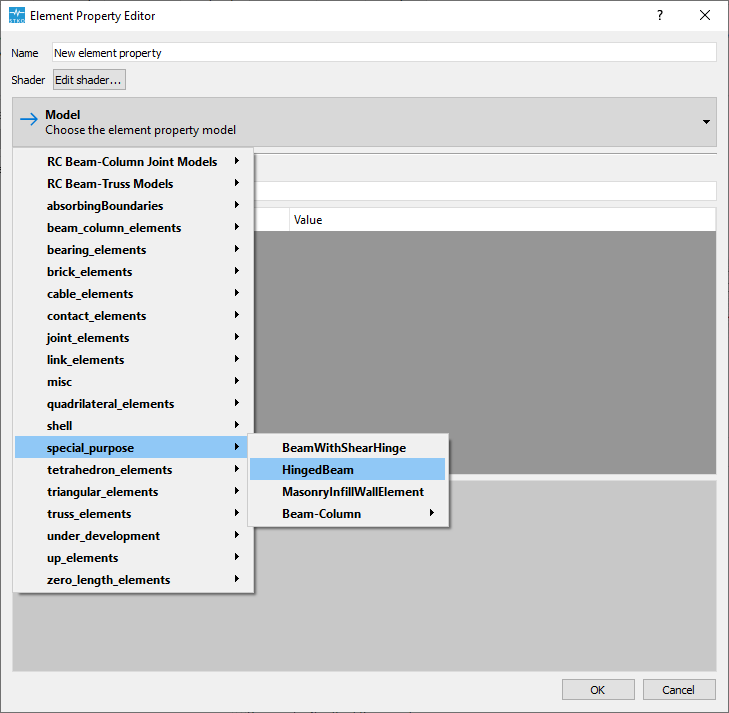
EP.0060 - HingedBeam | |||
| HingedBeam | physical_property not compatible with the element | The HingedBeam requires the physical_property HingedBeamPP. | |
EP.0570 - HingedBeamPP | |||
| HingedBeam | no physical_property has been assigned | The HingedBeam requires the physical_property materials/uniaxial. | |
EP.0286 - materials_uniaxial | |||
| HingedBeam | no physical_property has been assigned | The HingedBeam requires the physical_property materials/uniaxial. | |
EP.0463 - materials_uniaxial | |||
| MasonryInfillWallElement | no CAE document | Create at least one CAE document. | |
| |||
| MasonryInfillWallElement | invalid type of element or number of nodes | The element type must be 'Quadrilateral' with 4 nodes. | |
EP.0443 - Quadrilateral_4nodes | |||
| MasonryInfillWallElement | physical_property not compatible with the element | The MasonryInfillWallElement requires the physical_property MasonryInfillWallMaterial. | |
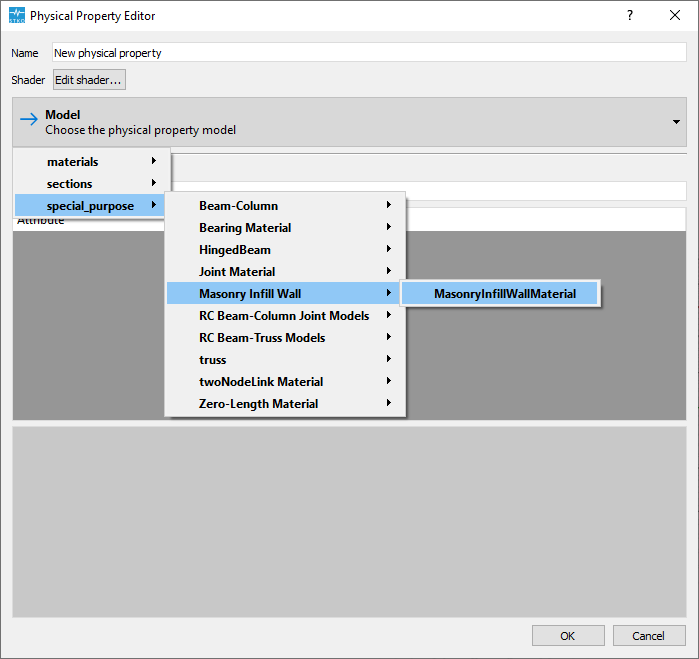
EP.0232 - MasonryInfillWallMaterial | |||
| MasonryInfillWallElement | physical_property not compatible with the element | The MasonryInfillWallElement requires the physical_property MasonryInfillWallMaterial. | |
EP.0310 - MasonryInfillWallMaterial | |||
| MasonryInfillWallElement | variable with incorrect value | The MasonryInfillWallElement requires the vertical direction of wallNormal to be coincident with the global Z axis. | |
| |||
| RCBeamColumnElement | no Attribute | Cannot find dataStore Attribute. | |
| |||
| RCBeamColumnElement | no CAE document | Create at least one CAE document. | |
| |||
| RCBeamColumnElement | physical_property not compatible with the element | The RCBeamColumnElement requires the physical_property RCBeamColumnProperty. | |
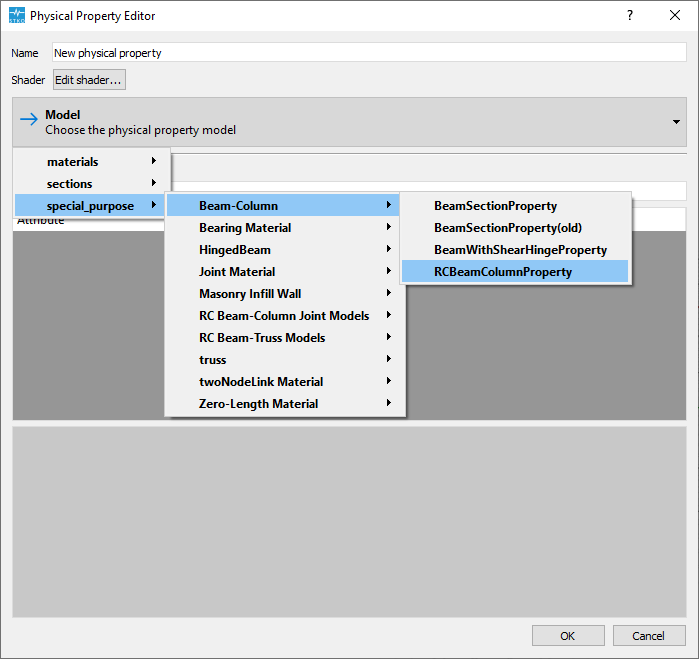
EP.0098 - RCBeamColumnProperty | |||
| RCBeamColumnElement | element_property not compatible | The RCBeamColumnElement requires the element_property RCBeamColumnElement. | |

EP.0504 - RCBeamColumnElement | |||
| RCBeamColumnElement | physical_property not compatible with the element | The RCBeamColumnElement requires the physical_property RCBeamColumnProperty. | |
EP.0623 - RCBeamColumnProperty | |||
| RCBeamColumnElement | invalid type of element or number of nodes | The element type must be 'Line' with 2 nodes. | |
EP.0717 - Line_2nodes | |||
| RCBeamColumnElement | no physical_property has been assigned | The RCBeamColumnElement requires the physical_property materials/uniaxial for Vy. | |
EP.0006 - materials_uniaxial | |||
| RCBeamColumnElement | no physical_property has been assigned | The RCBeamColumnElement requires the physical_property materials/uniaxial for Vz. | |
EP.0084 - materials_uniaxial | |||
| RCBeamColumnElement | no physical_property has been assigned | The RCBeamColumnElement requires the physical_property materials/uniaxial for torsion. | |
EP.0517 - materials_uniaxial | |||
| RCBeamColumnElement | incorrect size between two or more variables | The RCBeamColumnElement requires that secTag, weights, positions and numIntPts have the same size. | |
| |||
| RCBeamColumnElement | no physical_property has been assigned | The RCBeamColumnElement requires the physical_property materials/uniaxial for Vy. | |
EP.0500 - materials_uniaxial | |||
| RCBeamColumnElement | no physical_property has been assigned | The RCBeamColumnElement requires the physical_property materials/uniaxial for Vz. | |
EP.0206 - materials_uniaxial | |||
| RCBeamColumnElement | no physical_property has been assigned | The RCBeamColumnElement requires the physical_property materials/uniaxial for torsion. | |
EP.0371 - materials_uniaxial | |||
| RCBeamColumnElement | no physical_property has been assigned | The RCBeamColumnElement requires the physical_property RectangularFiberSection. | |
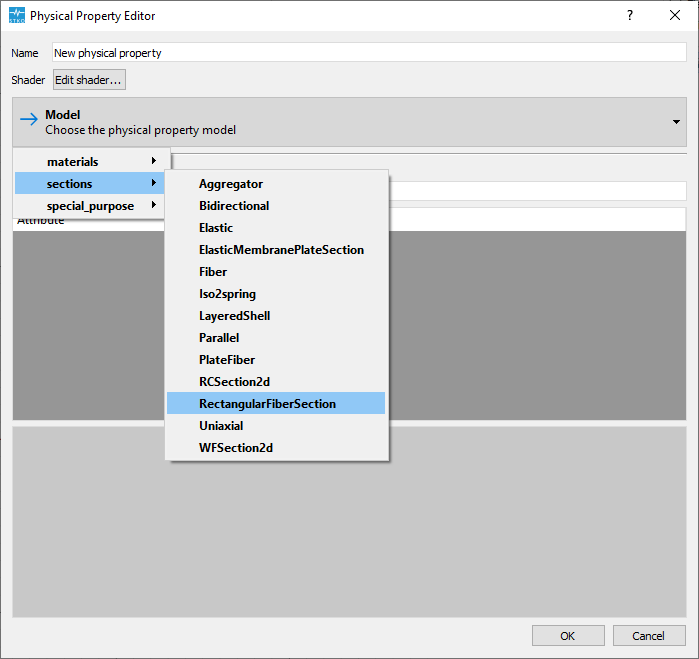
EP.0144 - RectangularFiberSection | |||
| RCBeamColumnElement | no physical_property has been assigned | The RCBeamColumnElement requires the physical_property materials/uniaxial for Vy. | |
EP.0116 - materials_uniaxial | |||
| RCBeamColumnElement | no physical_property has been assigned | The RCBeamColumnElement requires the physical_property materials/uniaxial for Vz. | |
EP.0552 - materials_uniaxial | |||
| RCBeamColumnElement | no physical_property has been assigned | The RCBeamColumnElement requires the physical_property materials/uniaxial for torsion. | |
EP.0446 - materials_uniaxial | |||
| RCBeamColumnElement | invalid type of element or number of nodes | The element type must be 'Line' with 2 nodes. | |
EP.0665 - Line_2nodes | |||
| RCBeamColumnElement | no physical_property has been assigned | The RCBeamColumnElement requires the physical_property sections. | |
EP.0205 - sections | |||
| RCBeamColumnElement | no physical_property has been assigned | The RCBeamColumnElement requires the physical_property sections. | |
EP.0138 - sections | |||
| RCBeamColumnElement | no physical_property has been assigned | The RCBeamColumnElement requires the physical_property materials/uniaxial for Vy. | |
EP.0192 - materials_uniaxial | |||
| RCBeamColumnElement | no physical_property has been assigned | The RCBeamColumnElement requires the physical_property materials/uniaxial for Vz. | |
EP.0489 - materials_uniaxial | |||
| RCBeamColumnElement | no physical_property has been assigned | The RCBeamColumnElement requires the physical_property materials/uniaxial for torsion. | |
EP.0367 - materials_uniaxial | |||
| RCBeamColumnElement | no physical_property has been assigned | The RCBeamColumnElement requires the physical_property materials/uniaxial for P. | |
EP.0719 - materials_uniaxial | |||
| RCBeamColumnElement | no physical_property has been assigned | The RCBeamColumnElement requires the physical_property materials/uniaxial for My. | |
EP.0718 - materials_uniaxial | |||
| RCBeamColumnElement | no physical_property has been assigned | The RCBeamColumnElement requires the physical_property materials/uniaxial for Vy. | |
EP.0069 - materials_uniaxial | |||
| RCBeamColumnElement | no physical_property has been assigned | The RCBeamColumnElement requires the physical_property materials/uniaxial for P. | |
EP.0306 - materials_uniaxial | |||
| RCBeamColumnElement | no physical_property has been assigned | The RCBeamColumnElement requires the physical_property materials/uniaxial for My. | |
EP.0164 - materials_uniaxial | |||
| RCBeamColumnElement | no physical_property has been assigned | The RCBeamColumnElement requires the physical_property materials/uniaxial for Vy. | |
EP.0036 - materials_uniaxial | |||
| RCBeamColumnElement | no physical_property has been assigned | The RCBeamColumnElement requires the physical_property materials/uniaxial for torsion. | |
EP.0594 - materials_uniaxial | |||
| RCBeamColumnElement | no physical_property has been assigned | The RCBeamColumnElement requires the physical_property materials/uniaxial for Mz. | |
EP.0693 - materials_uniaxial | |||
| RCBeamColumnElement | no physical_property has been assigned | The RCBeamColumnElement requires the physical_property materials/uniaxial for Vz. | |
EP.0680 - materials_uniaxial | |||
| RCBeamColumnElement | no physical_property has been assigned | The RCBeamColumnElement requires the physical_property materials/uniaxial for torsion. | |
EP.0688 - materials_uniaxial | |||
| RCBeamColumnElement | no physical_property has been assigned | The RCBeamColumnElement requires the physical_property materials/uniaxial for Mz. | |
EP.0568 - materials_uniaxial | |||
| RCBeamColumnElement | no physical_property has been assigned | The RCBeamColumnElement requires the physical_property materials/uniaxial for Vz. | |
EP.0573 - materials_uniaxial | |||
| RCBeamColumnElement | no physical_property has been assigned | The RCBeamColumnElement requires the physical_property materials/uniaxial for P. | |
EP.0307 - materials_uniaxial | |||
| RCBeamColumnElement | no physical_property has been assigned | The RCBeamColumnElement requires the physical_property materials/uniaxial for My. | |
EP.0647 - materials_uniaxial | |||
| RCBeamColumnElement | no physical_property has been assigned | The RCBeamColumnElement requires the physical_property materials/uniaxial for Vy. | |
EP.0595 - materials_uniaxial | |||
| RCBeamColumnElement | no physical_property has been assigned | The RCBeamColumnElement requires the physical_property materials/uniaxial for P. | |
EP.0130 - materials_uniaxial | |||
| RCBeamColumnElement | no physical_property has been assigned | The RCBeamColumnElement requires the physical_property materials/uniaxial for My. | |
EP.0117 - materials_uniaxial | |||
| RCBeamColumnElement | no physical_property has been assigned | The RCBeamColumnElement requires the physical_property materials/uniaxial for Vy. | |
EP.0383 - materials_uniaxial | |||
| RCBeamColumnElement | no physical_property has been assigned | The RCBeamColumnElement requires the physical_property materials/uniaxial for torsion. | |
EP.0270 - materials_uniaxial | |||
| RCBeamColumnElement | no physical_property has been assigned | The RCBeamColumnElement requires the physical_property materials/uniaxial for Mz. | |
EP.0705 - materials_uniaxial | |||
| RCBeamColumnElement | no physical_property has been assigned | The RCBeamColumnElement requires the physical_property materials/uniaxial for Vz. | |
EP.0249 - materials_uniaxial | |||
| RCBeamColumnElement | no physical_property has been assigned | The RCBeamColumnElement requires the physical_property materials/uniaxial for torsion. | |
EP.0691 - materials_uniaxial | |||
| RCBeamColumnElement | no physical_property has been assigned | The RCBeamColumnElement requires the physical_property materials/uniaxial for Mz. | |
EP.0024 - materials_uniaxial | |||
| RCBeamColumnElement | no physical_property has been assigned | The RCBeamColumnElement requires the physical_property materials/uniaxial for Vz. | |
EP.0558 - materials_uniaxial | |||
| RCBeamColumnElement | no Attribute | Cannot find dataStore Attribute. | |
| |||
| FourNodeTetrahedron | physical_property not compatible with the element | The FourNodeTetrahedron requires the physical_property materials/nD. | |
EP.0459 - materials_nD | |||
| FourNodeTetrahedron | invalid type of element or number of nodes | The element type must be 'Tetrahedron' with 4 nodes. | |
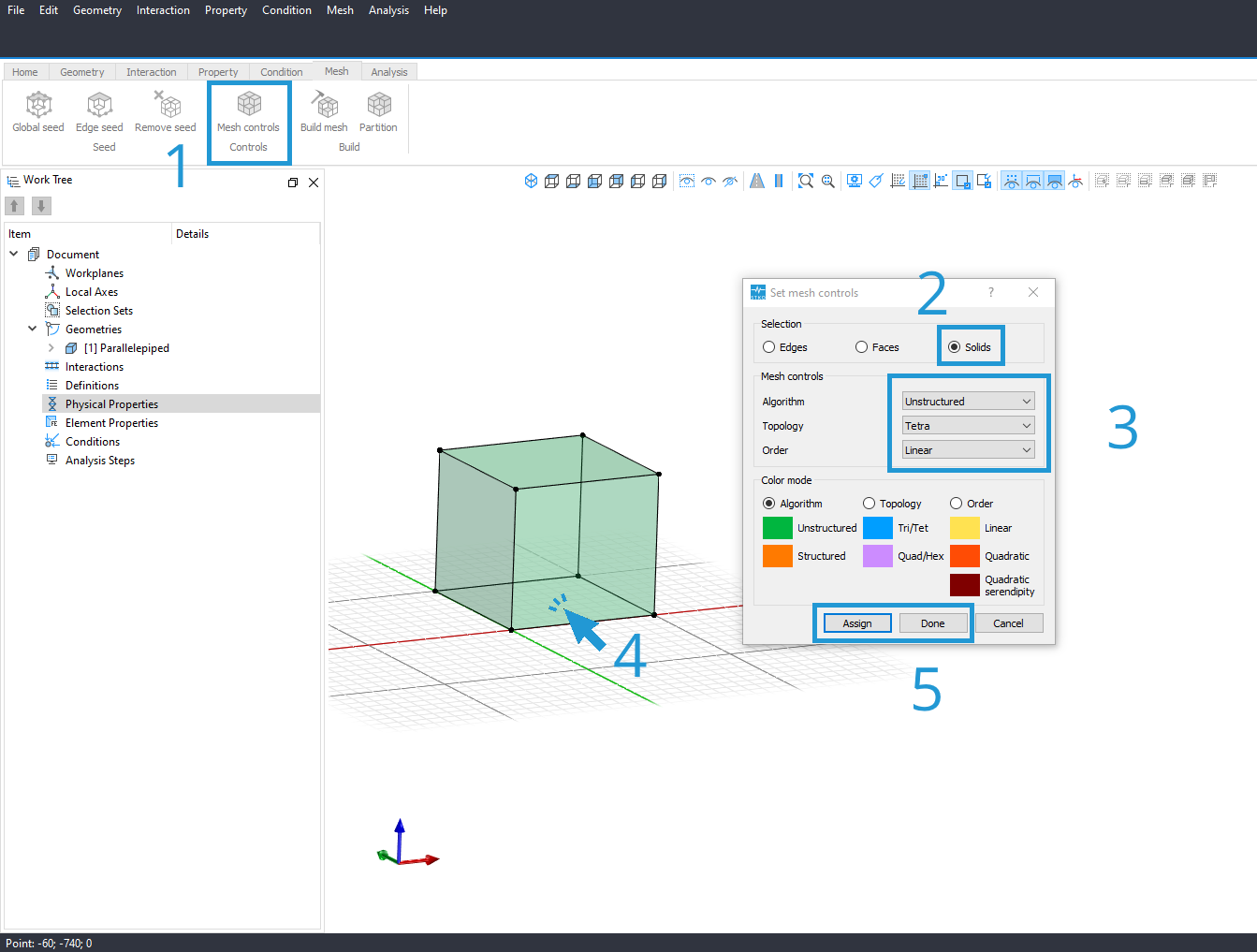
EP.0685 - Tetrahedron_4nodes | |||
| tri31 | physical_property not compatible with the element | The tri31 requires the physical_property materials/nD. | |
EP.0275 - materials_nD | |||
| tri31 | invalid type of element or number of nodes | The element type must be 'Triangle' with 3 nodes. | |
EP.0107 - Triangle_3nodes | |||
| corotTrussSection | invalid type of element or number of nodes | The element type must be 'Line' with 2 nodes. | |
EP.0468 - Line_2nodes | |||
| corotTrussSection | node not in the model map | The first node of the truss element is not in the model map. | |
| |||
| corotTrussSection | wrong spatial dimension | The corotTrussSection requires that the spatial dimension of the element be compatible with that of the model. | |
| |||
| corotTrussSection | node not in the model map | The first node of the truss element is not in the model map. | |
| |||
| corotTrussSection | wrong spatial dimension | The corotTrussSection requires that the spatial dimension of the element be compatible with that of the model. | |
| |||
| corotTrussSection | wrong spatial dimension | Unexpected NDM. | |
| |||
| corotTrussSection | physical_property not compatible with the element | The corotTrussSection requires the physical_property sections. | |
EP.0359 - sections | |||
| truss | invalid type of element or number of nodes | The element type must be 'Line' with 2 nodes. | |
EP.0432 - Line_2nodes | |||
| truss | node not in the model map | The first node of the truss element is not in the model map. | |
| |||
| truss | wrong spatial dimension | The truss requires that the spatial dimension of the element be compatible with that of the model. | |
| |||
| truss | node not in the model map | The first node of the truss element is not in the model map. | |
| |||
| truss | wrong spatial dimension | The truss requires that the spatial dimension of the element be compatible with that of the model. | |
| |||
| truss | wrong spatial dimension | Unexpected NDM. | |
| |||
| truss | physical_property not compatible with the element | The truss requires the physical_property sections. | |
EP.0214 - sections | |||
| 20_8_BrickUP | physical_property not compatible with the element | The 20_8_BrickUP requires the physical_property materials/nD. | |
EP.0303 - materials_nD | |||
| 20_8_BrickUP | physical_property not compatible with the element | The 20_8_BrickUP requires the physical_property materials/nD. | |
EP.0169 - materials_nD | |||
| 20_8_BrickUP | invalid type of element or number of nodes | The element type must be 'Hexahedron' with 20 nodes. | |
EP.0672 - Hexahedron_20nodes | |||
| 9_4_QuadUP | physical_property not compatible with the element | The 9_4_QuadUP requires the physical_property materials/nD. | |
EP.0407 - materials_nD | |||
| 9_4_QuadUP | physical_property not compatible with the element | The 9_4_QuadUP requires the physical_property materials/nD. | |
EP.0215 - materials_nD | |||
| 9_4_QuadUP | invalid type of element or number of nodes | The element type must be 'Quadrilateral' with 9 nodes. | |
EP.0510 - Quadrilateral_9nodes | |||
| bbarBrickUP | physical_property not compatible with the element | The bbarBrickUP requires the physical_property materials/nD. | |
EP.0505 - materials_nD | |||
| bbarBrickUP | invalid type of element or number of nodes | The element type must be 'Hexahedron' with 8 nodes. | |
EP.0147 - Hexahedron_8nodes | |||
| bbarQuadUP | physical_property not compatible with the element | The bbarQuadUP requires the physical_property materials/nD. | |
EP.0451 - materials_nD | |||
| bbarQuadUP | physical_property not compatible with the element | The bbarQuadUP requires the physical_property materials/nD. | |
EP.0343 - materials_nD | |||
| bbarQuadUP | invalid type of element or number of nodes | The element type must be 'Quadrilateral' with 4 nodes. | |
EP.0420 - Quadrilateral_4nodes | |||
| brickUP | physical_property not compatible with the element | The brickUP requires the physical_property materials/nD. | |
EP.0572 - materials_nD | |||
| brickUP | invalid type of element or number of nodes | The element type must be 'Hexahedron' with 8 nodes. | |
EP.0266 - Hexahedron_8nodes | |||
| quadUP | physical_property not compatible with the element | The quadUP requires the physical_property materials/nD. | |
EP.0487 - materials_nD | |||
| quadUP | physical_property not compatible with the element | The quadUP requires the physical_property materials/nD. | |
EP.0503 - materials_nD | |||
| quadUP | invalid type of element or number of nodes | The element type must be 'Quadrilateral' with 4 nodes. | |
EP.0636 - Quadrilateral_4nodes | |||
| SSPbrickUP | physical_property not compatible with the element | The SSPbrickUP requires the physical_property materials/nD. | |
EP.0604 - materials_nD | |||
| SSPbrickUP | invalid type of element or number of nodes | The element type must be 'Hexahedron' with 8 nodes. | |
EP.0219 - Hexahedron_8nodes | |||
| SSPquadUP | physical_property not compatible with the element | The SSPquadUP requires the physical_property materials/nD. | |
EP.0547 - materials_nD | |||
| SSPquadUP | invalid type of element or number of nodes | The element type must be 'Quadrilateral' with 4 nodes. | |
EP.0418 - Quadrilateral_4nodes | |||
| CoupledZeroLength | invalid type of element or number of nodes | The CoupledZeroLength requires 2 nodes. | |
EP.0416 - Edge_2nodes OR
EP.0416 - Interaction | |||
| zeroLength | physical_property not compatible with the element | The zeroLength requires the physical_property zeroLengthMaterial. | |
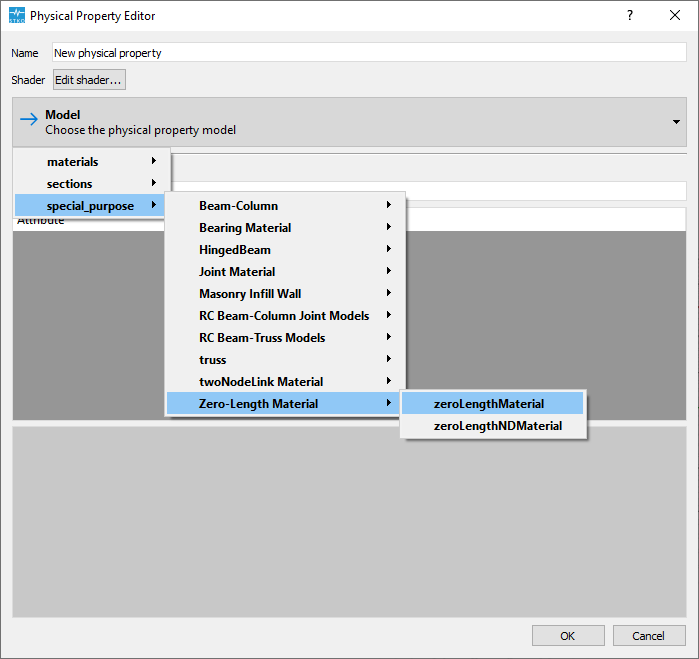
EP.0090 - zeroLengthMaterial | |||
| zeroLength | different dimension between element_property and physical_property | Different dimension between zeroLength and its physical_property. | |
| |||
| zeroLength | invalid type of element or number of nodes | The zeroLength requires 2 nodes. | |
EP.0479 - Edge_2nodes OR
EP.0479 - Interaction | |||
| zeroLength | physical_property not compatible with the element | The zeroLength requires the physical_property zeroLengthMaterial. | |
EP.0649 - zeroLengthMaterial | |||
| zeroLength | different dimension between element_property and physical_property | Different dimension between zeroLength and its physical_property. | |
| |||
| zeroLength | node not in the model map | A node of zeroLength element is not in the model map. | |
| |||
| zeroLength | wrong spatial dimension | A node of zeroLength element presents incorrect NDM. | |
| |||
| zeroLength | wrong spatial dimension | A node of zeroLength element presents incorrect NDF. | |
| |||
| zeroLength | no physical_property has been assigned | The zeroLength requires the physical_property materials/uniaxial. | |
EP.0115 - materials_uniaxial | |||
| zeroLength | no dir selected | No directory is selected. | |
| |||
| zeroLengthContact2D | invalid type of element or number of nodes | The zeroLengthContact2D requires 2 nodes. | |
EP.0334 - Edge_2nodes OR
EP.0334 - Interaction | |||
| zeroLengthContact3D | invalid type of element or number of nodes | The zeroLengthContact3D requires 2 nodes. | |
EP.0118 - Edge_2nodes OR
EP.0118 - Interaction | |||
| zeroLengthContact3D | node not in the model map | A node of zeroLengthContact3D element is not in the model map. | |
| |||
| zeroLengthContact3D | wrong spatial dimension | A node of zeroLengthContact3D element presents incorrect NDM. | |
| |||
| zeroLengthContactASDimplex | invalid type of element or number of nodes | The zeroLengthContactASDimplex requires at least 2 nodes. | |
EP.0375 - Edge_2nodes OR
EP.0375 - Interaction | |||
| zeroLengthContactASDimplex | invalid type of element or number of nodes | The element type must be 'Link'. | |
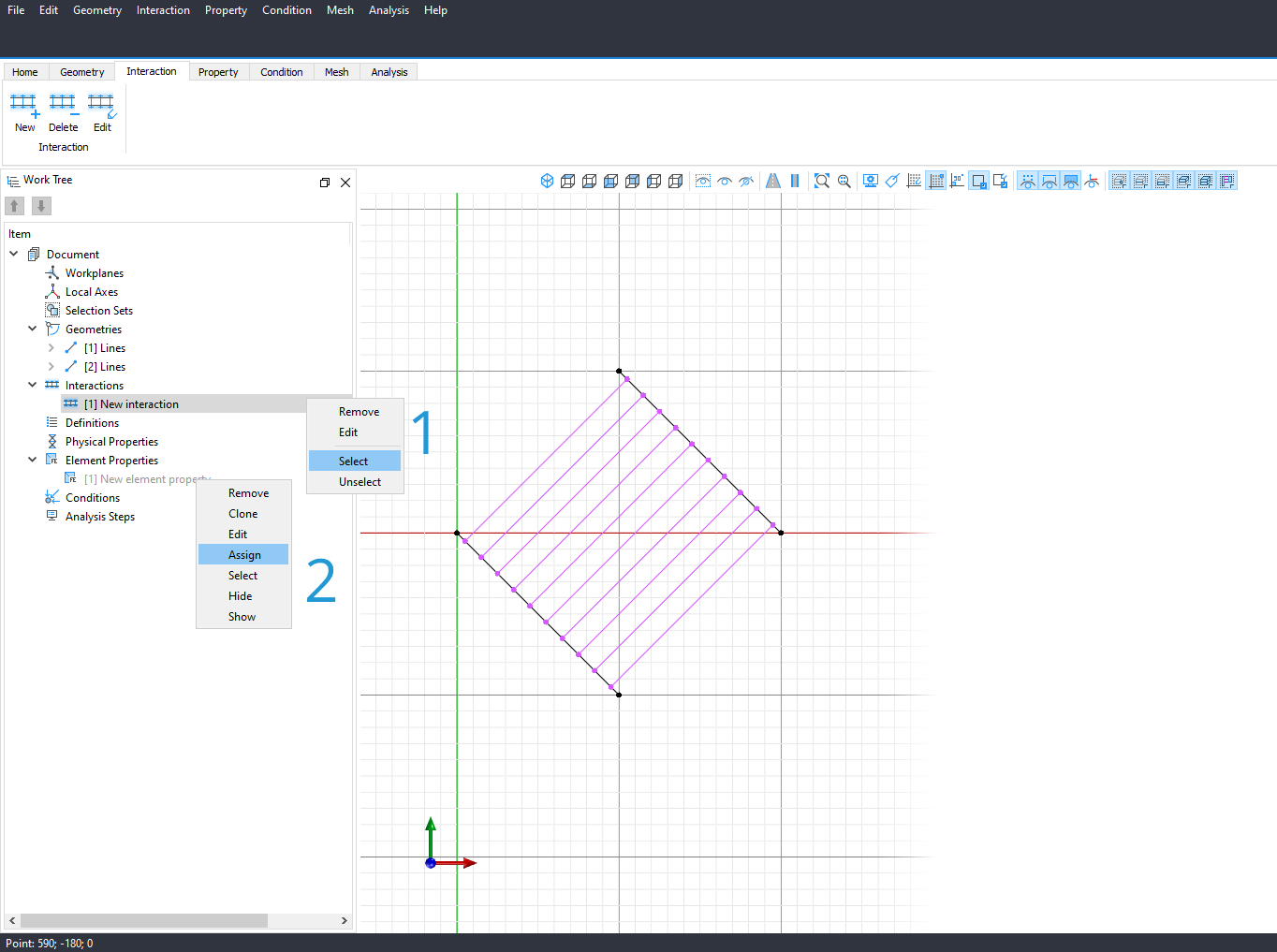
EP.0094 - Link | |||
| zeroLengthContactASDimplex | invalid master element | The zeroLengthContactASDimplex requires that the master element should come from a surface. | |
| |||
| zeroLengthContactASDimplex | invalid source element | The zeroLengthContactASDimplex requires a valid Link element. | |
| |||
| zeroLengthContactASDimplex | wrong family type | The zeroLengthContactASDimplex requires a that the master geometry of the Link element has a specific family type. | |
| |||
| zeroLengthContactASDimplex | wrong spatial dimension | With the zeroLengthContactASDimplex option, the master node must have Rotational DOFs'. | |
| |||
| zeroLengthContactASDimplex | wrong spatial dimension | With the zeroLengthContactASDimplex option, the master node must have Rotational DOFs'. | |
| |||
| zeroLengthContactASDimplex | wrong interaction type | The From Element orientation type is allowed only with Node-to-Element interactions. | |
| |||
| zeroLengthContactASDimplex | wrong interaction type | The From Link Direction orientation type is allowed only with Node-to-Node interactions. | |
| |||
| zeroLengthContactASDimplex | wrong distance | The From Link Direction orientation type is allowed only with a finite distance between the link nodes. | |
| |||
| zeroLengthImpact3D | invalid type of element or number of nodes | The zeroLengthImpact3D requires 2 nodes. | |
EP.0005 - Edge_2nodes OR
EP.0005 - Interaction | |||
| zeroLengthInterface2D | incorrect size between two or more variables | The zeroLengthInterface2D requires that len(mdof) and len(sdof) have the same size. | |
| |||
| zeroLengthInterface2D | invalid type of element or number of nodes | The element type must be 'Quadrilateral' with 4 nodes. | |
EP.0689 - Quadrilateral_4nodes | |||
| zeroLengthND | invalid type of element or number of nodes | The zeroLengthND requires 2 nodes. | |
EP.0388 - Edge_2nodes OR
EP.0388 - Interaction | |||
| zeroLengthND | physical_property not compatible with the element | The zeroLengthND requires the physical_property zeroLengthNDMaterial. | |
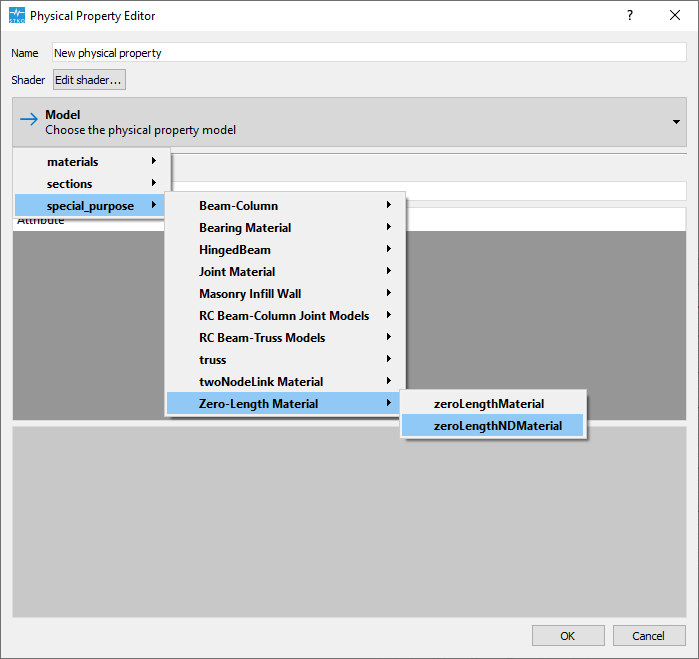
EP.0048 - zeroLengthNDMaterial | |||
| zeroLengthRocking | invalid type of element or number of nodes | The zeroLengthRocking requires 2 nodes. | |
EP.0143 - Edge_2nodes OR
EP.0143 - Interaction | |||
| zeroLengthRocking | node not in the model map | A node of zeroLengthRocking element is not in the model map. | |
| |||
| zeroLengthRocking | wrong spatial dimension | A node of zeroLengthRocking element presents incorrect NDM. | |
| |||
| zeroLengthSection | invalid type of element or number of nodes | The zeroLengthSection requires 2 nodes. | |
EP.0651 - Edge_2nodes OR
EP.0651 - Interaction | |||
| mpc_solver_write_input | no CAE document | Create at least one CAE document. | |
| |||
| mpc_solver_write_input | unmeshed model | The model has not been meshed. | |
| |||
| mpc_solver_write_input | unmeshed geometry | A geometry has not been meshed. | |
| |||
| mpc_solver_write_input | unmeshed interaction | An interaction has been meshed. | |
| |||
| gradientInelasticBeamColumn | physical_property not compatible with the element | The gradientInelasticBeamColumn requires the physical_property gradientInelasticProperty. | |

EP.0355 - gradientInelasticProperty | |||
| gradientInelasticBeamColumn | invalid type of element or number of nodes | The element type must be 'Line' with 2 nodes. | |
EP.0318 - Line_2nodes | |||
| MVLEM_3D | invalid type of element or number of nodes | The element type must be 'Quadrilateral' with 4 nodes. | |
EP.0700 - Quadrilateral_4nodes | |||
| MVLEM_3D | incorrect size between two or more variables | The MVLEM_3D requires that Thicknesses and Number of element fibers have the same size. | |
| |||
| MVLEM_3D | incorrect size between two or more variables | The MVLEM_3D requires that Widths and Number of element fibers have the same size. | |
| |||
| MVLEM_3D | incorrect size between two or more variables | The MVLEM_3D requires that Reinforcing_ratios and Number of element fibers have the same size. | |
| |||
| MVLEM_3D | incorrect size between two or more variables | The MVLEM_3D requires that Concrete_tags and Number of element fibers have the same size. | |
| |||
| MVLEM_3D | incorrect size between two or more variables | The MVLEM_3D requires that Steel_tags and Number of element fibers have the same size. | |
| |||
| SFI_MVLEM_3D | invalid type of element or number of nodes | The element type must be 'Quadrilateral' with 4 nodes. | |
EP.0539 - Quadrilateral_4nodes | |||
| SFI_MVLEM_3D | incorrect size between two or more variables | The SFI_MVLEM_3D requires that Thicknesses and Number of element fibers have the same size. | |
| |||
| SFI_MVLEM_3D | incorrect size between two or more variables | The SFI_MVLEM_3D requires that Widths and Number of element fibers have the same size. | |
| |||
| SFI_MVLEM_3D | incorrect size between two or more variables | The SFI_MVLEM_3D requires that Material_tags and Number of element fibers have the same size. | |
| |||
 1.9.4
1.9.4